

Programming interface graphics display logic

Our video game development company runs independent projects, jointly creates games with the client and provides additional operational services. Expertise of our team allows us to cover all gaming platforms and develop an amazing product that matches the customer’s vision and players preferences.
Showing 1 of 1 servicesAll 242 services
Programming interface graphics display logic
Medium
~3 business days
FAQ
Our competencies
What are the stages of Game Development?
Latest works
  • image_games_mortal_motors_495_0.webp
    Game development for Mortal Motors
    663
  • image_games_a_turnbased_strategy_game_set_in_a_fantasy_setting_with_fire_and_sword_603_0.webp
    A turn-based strategy game set in a fantasy setting, With Fire and Sword
    859
  • image_games_second_team_604_0.webp
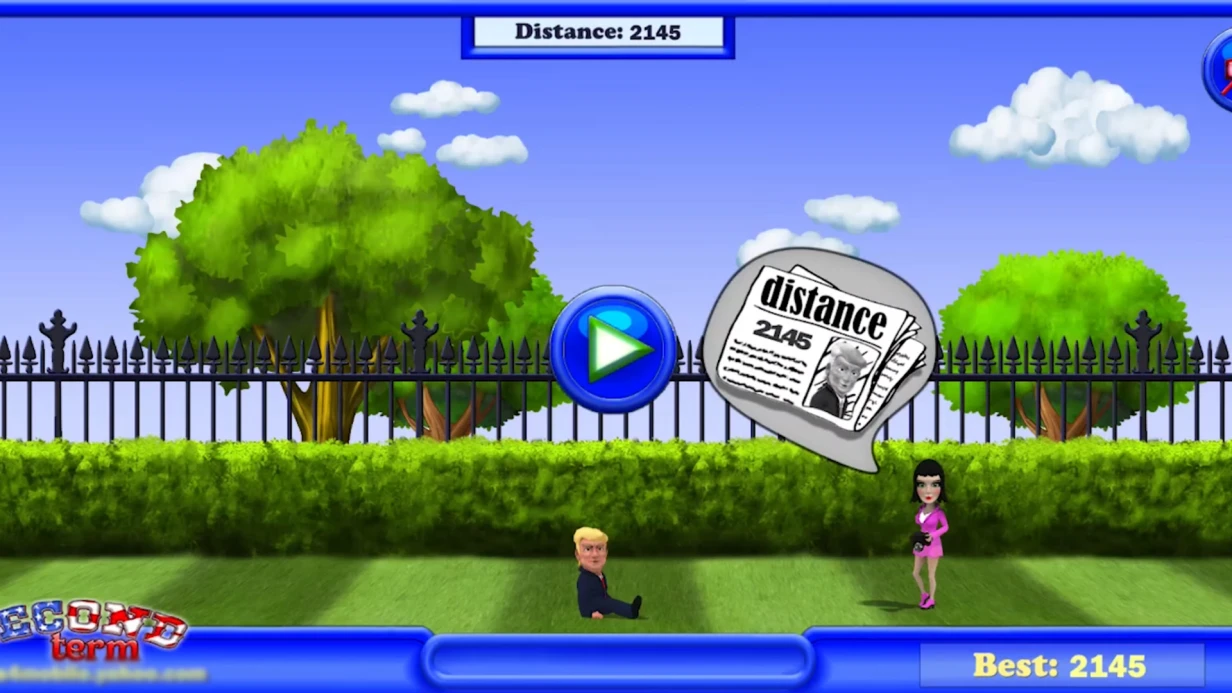
    Game development for the company Second term
    490
  • image_games_phoenix_ii_606_0.webp
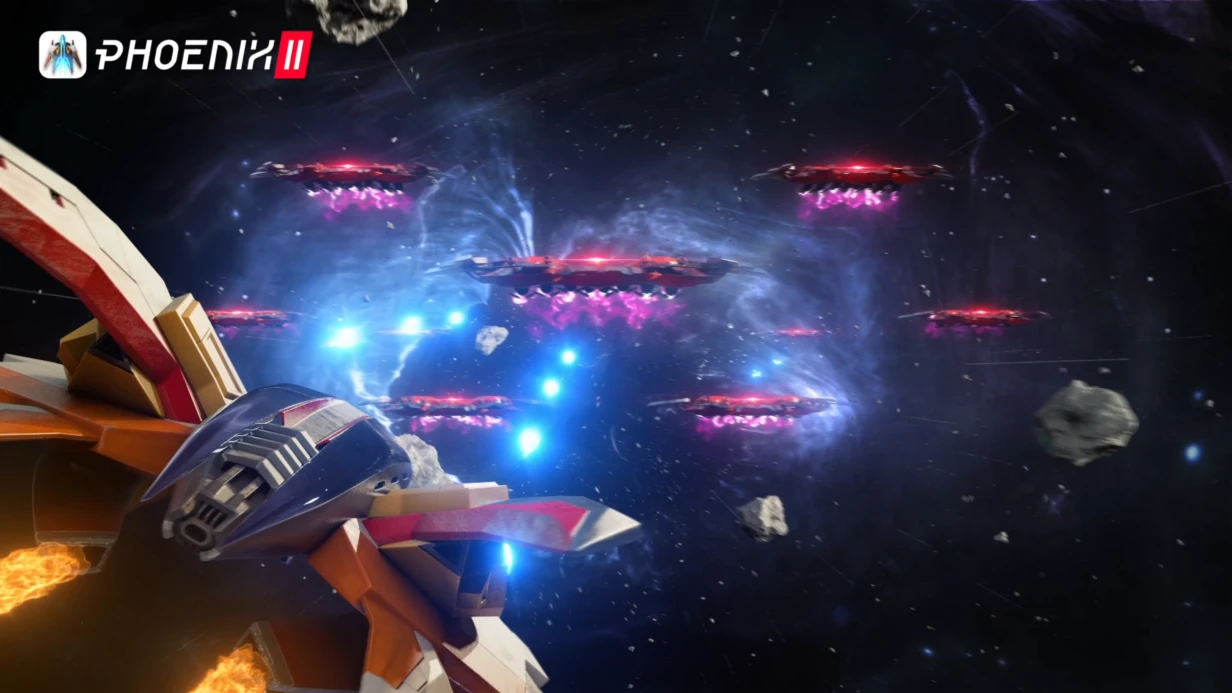
    3D animation - teaser for the game Phoenix 2.
    533

Programming Interface Graphics Display Logic

Drawn and styled interface—not yet interface. Need logic: where data comes from, how it reaches screen, how screen reacts to game state change, how navigation between screens works. This is UI programming, comprising one-third of interface development time.

Architecture of UI Connection With Game Logic

Main architectural choice—how UI learns of game state changes. Three main approaches:

Observer / Event System—UI subscribes to game system events: HealthSystem.OnHealthChanged += UpdateHealthBar. Loose coupling, easy UI-implementation switching. Problem: without unsubscribe before object destroy—NullReferenceException. Must unsubscribe in OnDisable() or OnDestroy().

Model-View-Presenter (MVP)—Presenter handles connection between data (Model) and display (View). View doesn't know game logic, only visual components. Presenter knows both. Scales well, tests well. Typical Unity implementation—abstract BaseView class with Show(), Hide(), Bind(IModel model) methods, specific Presenters per screen.

ScriptableObject-based Event System—all events as ScriptableObjects with Raise() method and listener list. Popularized by Ryan Hipple at Unite 2017. Convenient for small teams, easy Inspector debugging. Minus: many events get hard to manage dependencies.

For most projects recommend MVP with EventSystem for cross-module communication. Gives readable code, predictable behavior, good UI testability without scene run.

Screen State Management

Screen Manager—typical system controlling which screen is open, managing transitions. Minimal implementation: screen stack (for Back navigation), screenId → IScreen dictionary, Push(), Pop(), Replace() methods.

For Android mobile, Back Button must correctly handle via Application.exitCancellationToken or Input.GetKeyDown(KeyCode.Escape)—on press should close top screen in stack, not exit game. Often forgotten in development, caught on Google Play submission.

CanvasGroup—tool for managing visibility and interactivity of element group. canvasGroup.alpha = 0 visually hides but elements keep receiving events. Must also set canvasGroup.interactable = false and canvasGroup.blocksRaycasts = false on hide—otherwise invisible buttons catch clicks through them.

Case Study: Inventory With Drag & Drop

Task: drag & drop items between inventory slots with gamepad support. On mouse—IBeginDragHandler, IDragHandler, IEndDragHandler. On gamepad—different logic: cursor-mode navigation selecting source and target via buttons.

Drag & drop in uGUI requires "ghost" object—copy of dragged icon following cursor via RectTransformUtility.ScreenPointToLocalPointInRectangle(). Ghost in separate Canvas above everything (separate Canvas with higher Sort Order)—else icon gets covered by other elements during drag.

For gamepad implemented separate mode: first A press selects slot (highlighted selected state), D-pad navigation moves virtual cursor between slots, second A press completes drag. Two control modes—two finite state machines in single InventoryController.

Display Logic: Common Problems

UI update every frame—antipattern. healthBar.fillAmount = player.health / player.maxHealth in Update() works but rebuilds Image mesh each frame even if value unchanged. Correct: update only on data change via event or property with setter.

String concatenation in Update—worse. levelText.text = "Level: " + player.level creates new string each call, causing GC Allocations. Use string.Format() or StringBuilder for frequently updated text. TextMeshPro has SetText(string, float)—float overload formatting number without GC allocation.

Button z-fighting: two Buttons with same Sort Order in one Canvas, one over other. EventSystem sends event to topmost in hierarchy, but if Raycast Target enabled on both—clicks can leak through. Check via UI Debugger (right-click EventSystem → UI Debug).

Loading State display: waiting for server response, UI should block re-clicks. Typical mistake—show Spinner and forget disable button. Correct: block CanvasGroup.interactable = false for entire screen + show Loading Overlay + in finally of async method restore interactable = true. Else on slow connection user clicks several times.

Process and Timeline

Development starts with architectural choice: binding pattern selection with game logic, Screen Manager architecture definition, UI/game system interface agreement. Then—implement base infrastructure (Screen Manager, Base View, Event Bus). Next—per-screen implementation with Presenter unit tests. Final—device integration testing.

Task Timeline
Logic for 1 screen (display data, buttons) 1–3 days
Screen Manager + navigation for entire project 3–7 days
Complex system (inventory, drag & drop, gamepad) 1–2 weeks
Full indie project UI logic (10–15 screens) 4–10 weeks

Cost calculated individually after analyzing game logic and platform requirements.