

AirPlay streaming from mobile app

TRUETECH is engaged in the development, support and maintenance of iOS, Android, PWA mobile applications. We have extensive experience and expertise in publishing mobile applications in popular markets like Google Play, App Store, Amazon, AppGallery and others.
Development and support of all types of mobile applications:
Information and entertainment mobile applications
News apps, games, reference guides, online catalogs, weather apps, fitness and health apps, travel apps, educational apps, social networks and messengers, quizzes, blogs and podcasts, forums, aggregators
E-commerce mobile applications
Online stores, B2B apps, marketplaces, online exchanges, cashback services, exchanges, dropshipping platforms, loyalty programs, food and goods delivery, payment systems.
Business process management mobile applications
CRM systems, ERP systems, project management, sales team tools, financial management, production management, logistics and delivery management, HR management, data monitoring systems
Electronic services mobile applications
Classified ads platforms, online schools, online cinemas, electronic service platforms, cashback platforms, video hosting, thematic portals, online booking and scheduling platforms, online trading platforms

These are just some of the types of mobile applications we work with, and each of them may have its own specific features and functionality, tailored to the specific needs and goals of the client.

Showing 1 of 1 servicesAll 1735 services
AirPlay streaming from mobile app
Medium
~2-3 business days
FAQ
Our competencies:
Development stages
Latest works
  • image_mobile-applications_feedme_467_0.webp
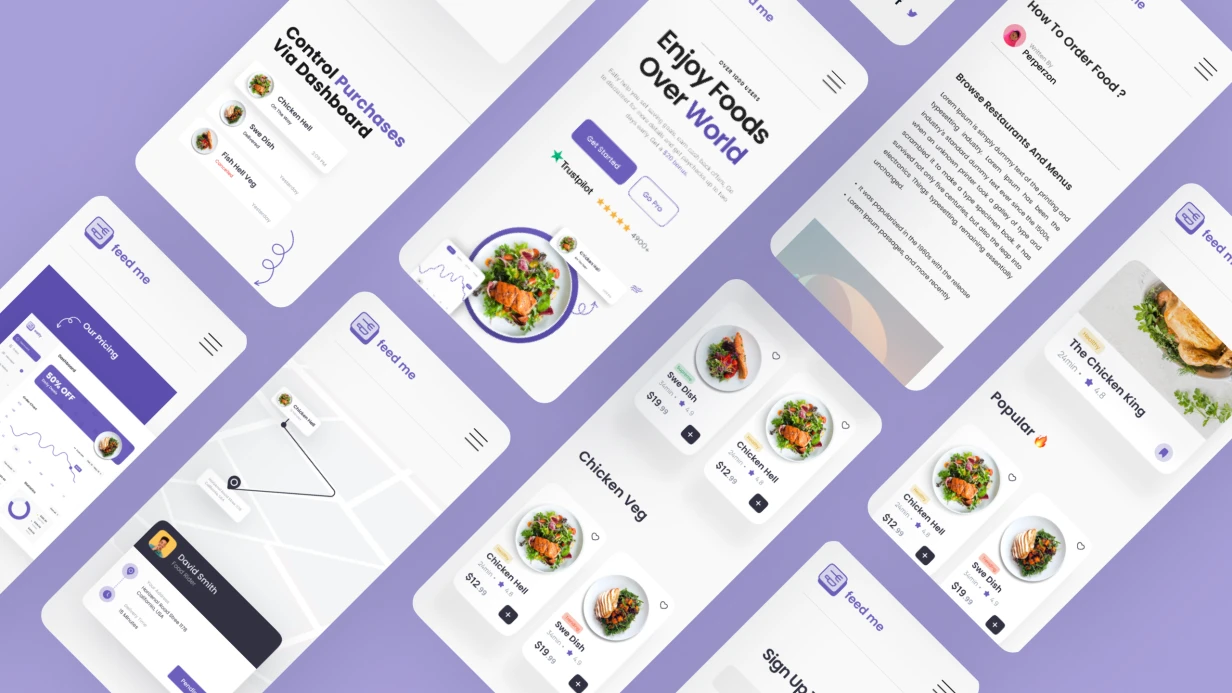
    Development of a mobile application for FEEDME
    756
  • image_mobile-applications_xoomer_471_0.webp
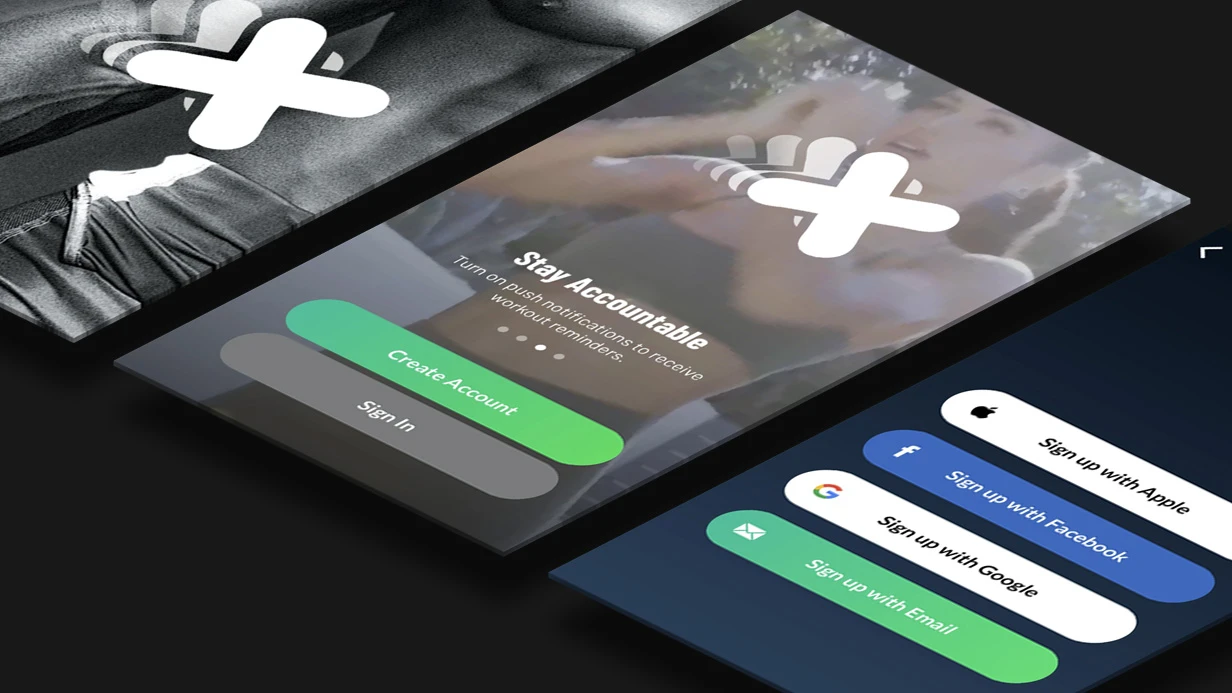
    Development of a mobile application for XOOMER
    624
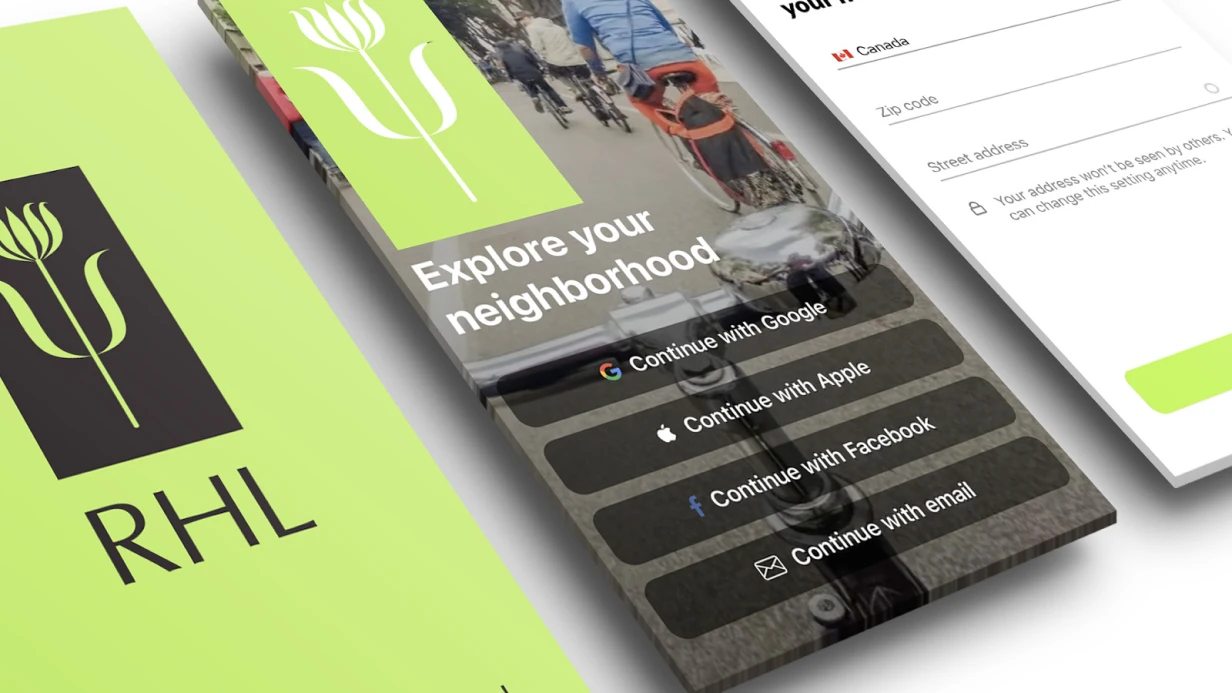
  • image_mobile-applications_rhl_428_0.webp
    Development of a mobile application for RHL
    1054
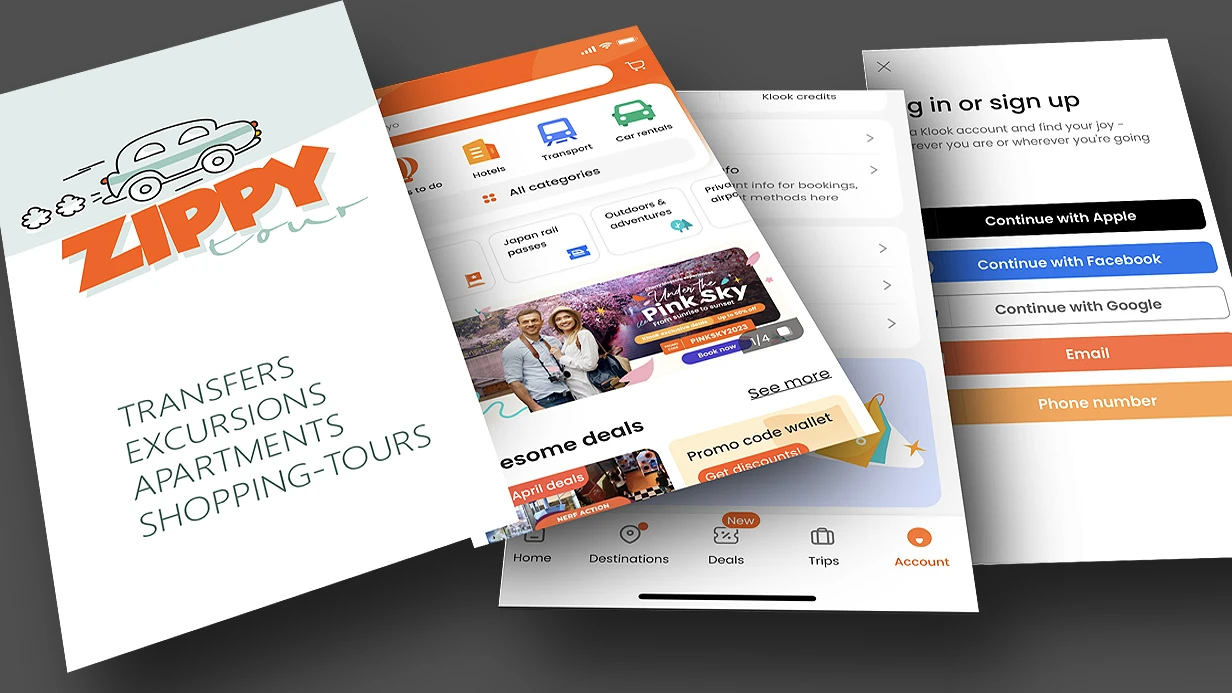
  • image_mobile-applications_zippy_411_0.webp
    Development of a mobile application for ZIPPY
    947
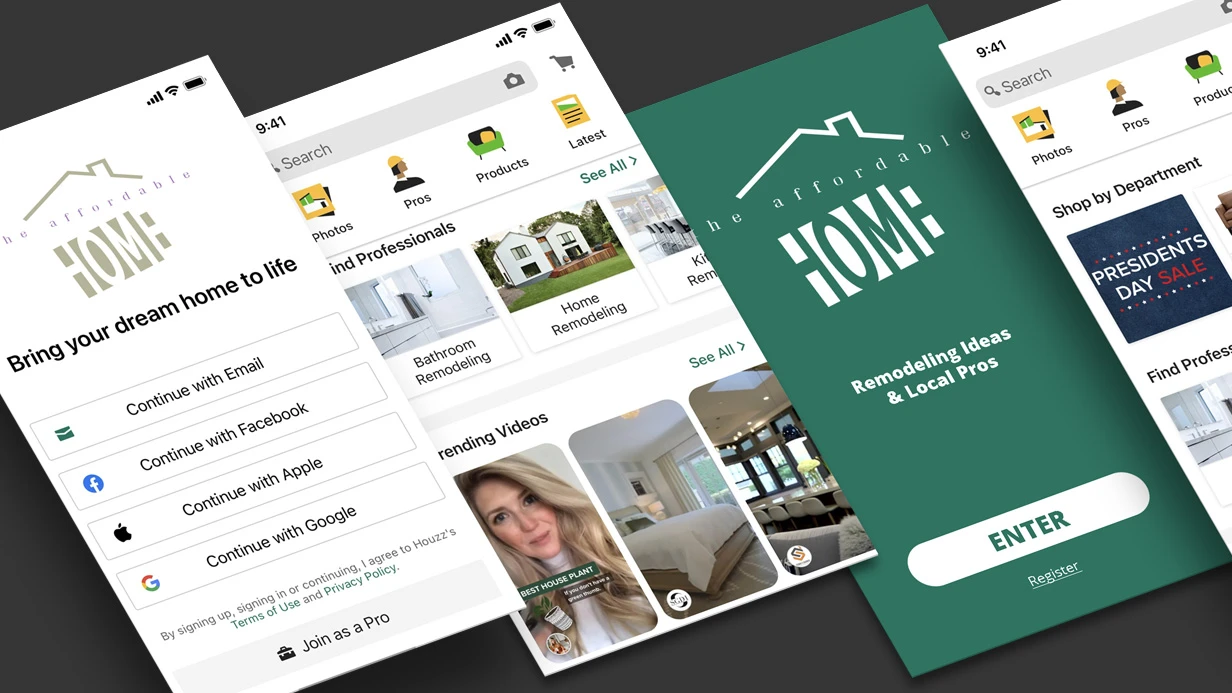
  • image_mobile-applications_affhome_429_0.webp
    Development of a mobile application for Affhome
    862
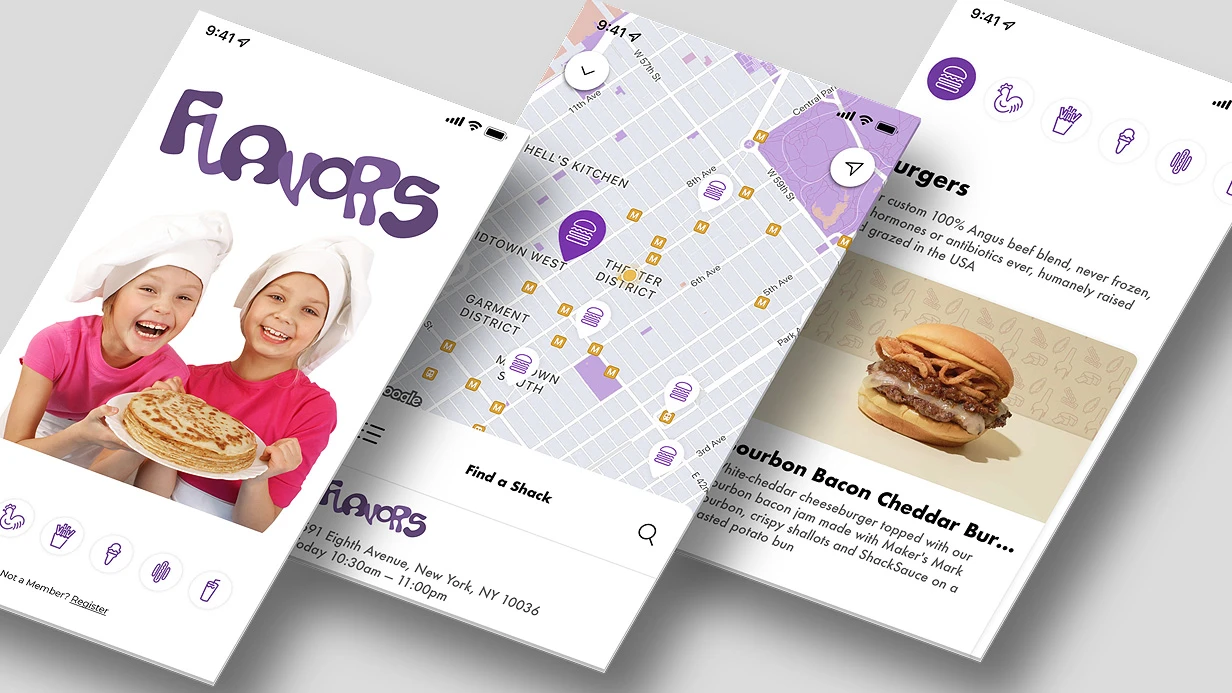
  • image_mobile-applications_flavors_409_0.webp
    Development of a mobile application for the FLAVORS company
    445

Implementing AirPlay Streaming from a Mobile Application

AirPlay is an Apple protocol for wireless transmission of audio and video to Apple TV, HomePod, AirPlay 2-compatible televisions and speakers. If an application plays media through AVPlayer, basic AirPlay works without additional code — but only basic functionality.

What Works Automatically vs. What Requires Configuration

AVPlayer automatically supports AirPlay when player.allowsExternalPlayback = true (the default value is true). Users see the AirPlay icon in the system Control Center, select a device, and video switches automatically.

What doesn't work without code:

  • AirPlay button directly in the application interface
  • Handling playback device changes
  • Control over what is transmitted (routing video to TV, audio to HomePod)

AVRoutePickerView: AirPlay Button in UI

AVRoutePickerView is a system component that displays the standard list of available devices:

let routePickerView = AVRoutePickerView()
routePickerView.tintColor = .white
routePickerView.activeTintColor = .systemBlue
routePickerView.prioritizesVideoDevices = true // shows AirPlay-TV above speakers

Add directly to the player UI — no additional permissions required; the picker is system-provided.

Monitoring Playback Route

When connecting to an AirPlay device, the UI must adapt: hide the fullscreen button (video is already on TV), show an indicator "Transmitting to...".

NotificationCenter.default.addObserver(
    forName: AVAudioSession.routeChangeNotification,
    object: nil, queue: .main
) { notification in
    guard let reason = notification.userInfo?[AVAudioSessionRouteChangeReasonKey] as? UInt,
          let changeReason = AVAudioSession.RouteChangeReason(rawValue: reason) else { return }

    switch changeReason {
    case .newDeviceAvailable:
        let outputs = AVAudioSession.sharedInstance().currentRoute.outputs
        let isAirPlay = outputs.contains { $0.portType == .airPlay }
        self.updateUIForAirPlay(isAirPlay)
    case .oldDeviceUnavailable:
        self.updateUIForAirPlay(false)
    default: break
    }
}

player.isExternalPlaybackActive is a flag indicating that video is currently being transmitted to an external screen. When true, the main phone screen shows an "Playing on Apple TV" placeholder instead of a black screen.

AirPlay 2 and Multi-room Audio

AirPlay 2 allows audio playback simultaneously on multiple devices. To support it in an application: AVAudioSession category .playback or .playAndRecord — that's all that's needed. The system handles multi-routing automatically.

Limitations

AirPlay is only available on iOS and macOS. For Android applications, the equivalent is Chromecast (Google Cast SDK). For cross-platform support, we implement both protocols.

Video with DRM (FairPlay) is transmitted via AirPlay only to devices with FairPlay support. Apple TV supports it; most third-party AirPlay devices do not. Users see a playback error — this is an Apple limitation that cannot be bypassed.

AirPlay for Audio: Separate Route

When transmitting video to an AirPlay device, audio can remain on the phone or go with the video — this depends on AVAudioSession settings. For correct behavior (audio and video together on the AirPlay device): AVAudioSession.Category.playback without allowBluetoothA2DP. If you need to keep audio on the phone while video is on TV — set AVAudioSession.setCategory(.playback, options: [.allowAirPlay]) and configure preferredInput.

Testing Without Physical Apple TV

Network.framework allows emulating a Bonjour service in the simulator for basic testing. However, comprehensive AirPlay testing requires a physical device — Apple TV, HomePod, or an AirPlay 2-compatible television. Automated AirPlay functionality testing in CI/CD is not possible — only manual verification.

Timeline

AirPlay button in UI + route monitoring + correct placeholder display — 1–2 days.