

Baking lightmaps is the only way to get physically correct HDR lighting without FPS drops on mobile platforms and in VR. But the process is not just clicking the Bake button: it requires control of UV unwrapping, configuration of Progressive Lightmapper, and quality denoising via Optix or OpenImageDenoise. Mistakes at any stage lead to artifacts — dark bands on seams, blurry shadows, memory overhead of 30–50%.
We have been baking lightmaps for projects for over 5 years. During this time, we have worked on dozens of commercial games: from mobile strategies to PC action titles. Our approach is detailed geometry audit, manual UV1 correction in Blender, and compression selection for the target platform (ASTC for iOS, ETC2 for Android). We guarantee quality — lightmaps that are presentable in the final build.
In this article, we will break down the technical details: why UV1 is the main source of problems, how to properly configure Progressive Lightmapper (direct samples, indirect samples, maximum bounces), and which compression formats to choose for different platforms. We will also share a real case from practice — a mobile strategy with a 4 MB limit per scene.
Why UV1 Unwrapping Is the Main Cause of Problems
Progressive Lightmapper bakes lighting into UV Channel 1. If this channel is set incorrectly, no parameters will save you. Three hard requirements: islands must not overlap, padding from the atlas edge must be at least 2 pixels, and island size must be proportional.
Automatic UV generation (Model → Generate Lightmap UVs) often creates islands that are too small on architectural objects — dark bands appear on seams due to padding artifacts. For such objects, we manually create UV1 in Blender or Maya. We verify using the Lightmap UV Preview in the Scene View. Experience shows that manual unwrapping reduces defect rate from 40% to 5%.
How to Configure Progressive Lightmapper for Quality Results
Key parameters: Lightmap Resolution — 10–20 for near objects, 2–5 for distant ones (via Lightmap Parameters Assets). Direct Samples 64, Indirect Samples 512 — baseline for production. Max Bounces — 2 for most scenes, 4 for glass interiors. Denoising — enable Optix (NVIDIA) or OpenImageDenoise (Intel). The GPU version of Progressive Lightmapper speeds up baking by 5–15 times compared to the CPU version.
Case: Lightmaps for a Mobile Strategy — From Our Practice
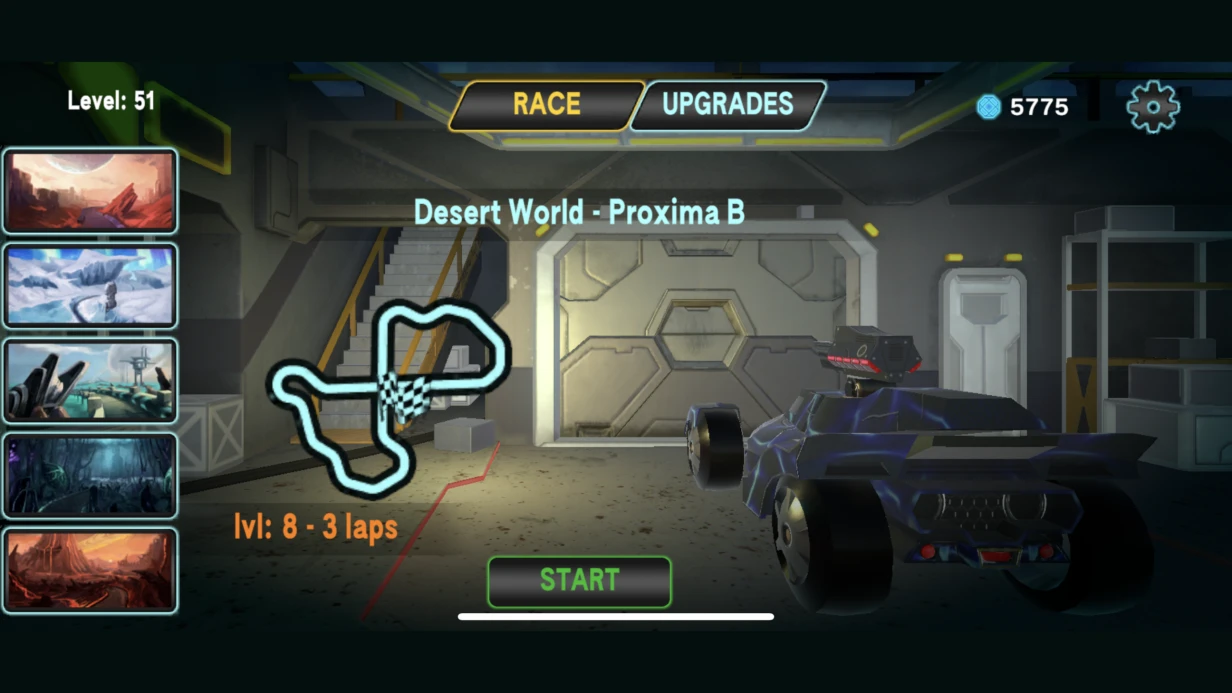
Our client was a mobile strategy game with an isometric view, 20+ scenes. Requirement: lightmaps ≤ 4 MB per scene. With standard settings — 6–8 MB. Solution: one atlas of 2048×2048 instead of several 1024×1024 (better bin-packing), disabling Contribute GI for invisible surfaces. Result — 2 MB in ETC2 while preserving foreground quality. Memory savings — 40%.
Comparison of Lightmap Compression Formats
| Format | Platform | Quality | Size | Note |
|---|---|---|---|---|
| ETC2 | Android | Medium | 2–4 MB | Recommended for most devices |
| ASTC 6×6 | iOS (Metal) | High | 1.5–3 MB | Best quality/size ratio |
| BC6H | Desktop | High | 4–8 MB | HDR only, requires hardware support |
What Is Included in Lightmap Baking Work
- Audit of current UV unwrappings and correction of problematic objects.
- Configuration of Lightmap Parameters Assets per object class.
- Test baking (Direct 8, Indirect 32) to verify structure.
- Final baking with production parameters and denoising.
- Compression optimization for the target platform.
- Verification in the build and adjustments.
Stages of Lightmap Baking Work
- Geometry and UV channel audit.
- Configuration of baking parameters and Lightmap Parameters Assets.
- Test baking with low quality.
- Final baking with denoising.
- Compression and testing on the target platform.
| Project Scale | Timeline |
|---|---|
| 1–3 small scenes (up to 100 objects) | 2–4 days |
| 10–20 medium-sized scenes | 1–3 weeks |
| Large open-world level | 1–2 weeks |
| Full pipeline with UV fixes and optimization | 3–6 weeks |
For an accurate project estimate, contact us — we will analyze the current state and propose the optimal solution. Order a lighting audit to avoid common mistakes. We work with studios from the CIS and Europe and have completed more than 30 baking projects.
Details in the official Unity documentation: Progressive Lightmapper.