


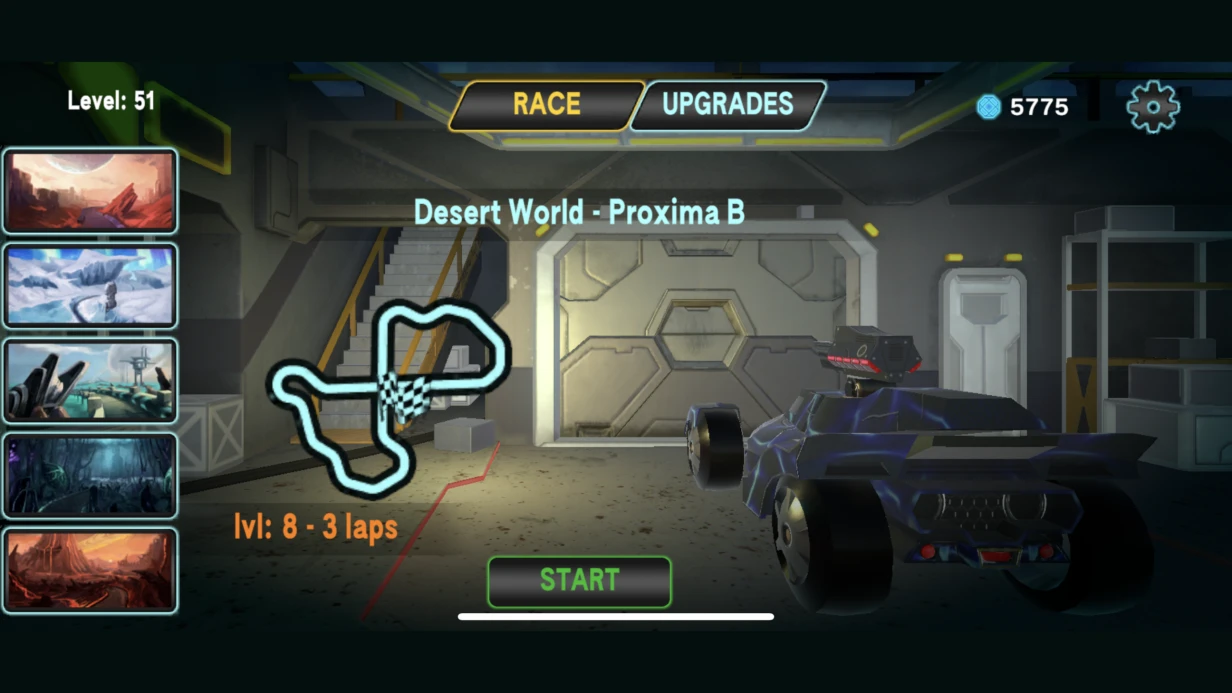
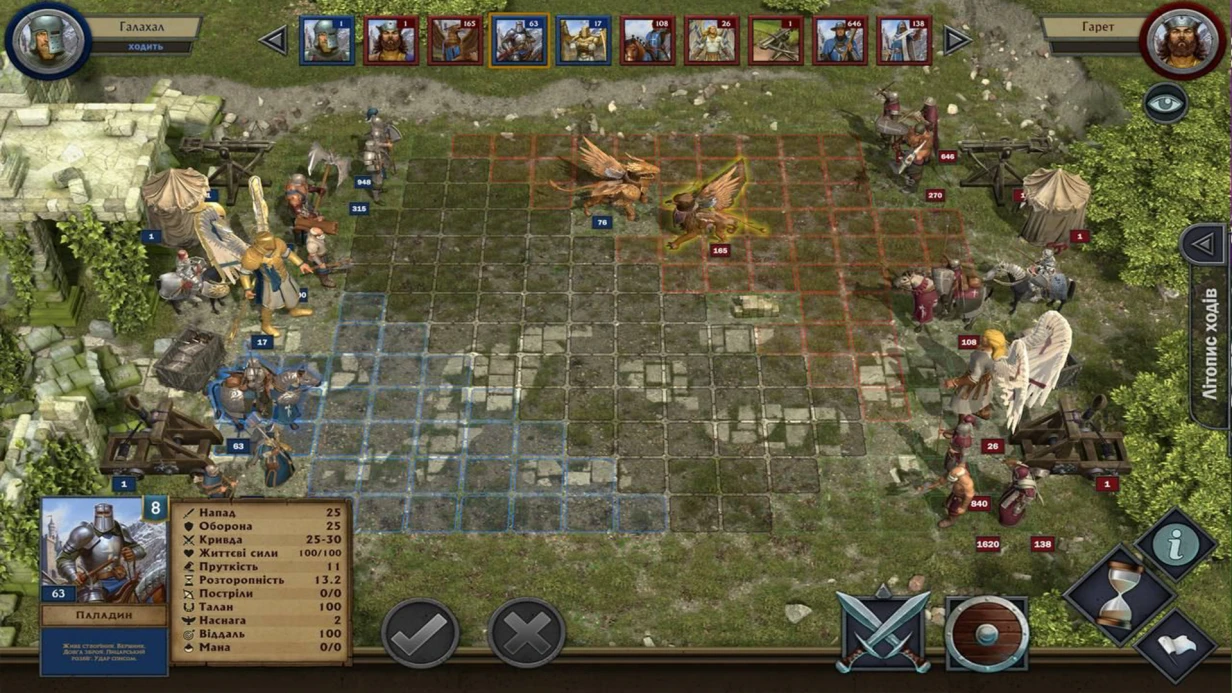



We have seen many times how a project at the finish line turns into a nightmare: everything runs smoothly on the developer's machine, but on a Samsung Galaxy A12 it's 15 FPS and crashes, and on an iPad Air textures are blurry. Without a well-established QA process, game testing becomes a lottery. Our team, with 8 years of experience, has tested over 30 mobile games and in every project found critical issues that standard runs missed. Turnkey game testing — from functional to load testing — with quality assurance and a report ready for implementation. We will evaluate your project in 3 days — contact us.
How Do We Guarantee High Quality Through Testing?
Our comprehensive testing process covers functional, regression, load, and performance testing on real devices to ensure your game runs smoothly.
Testing and QA
How to Automate Testing in Unity?
The most effective way to catch regression is automated tests that run without human intervention. In Unity, this is Unity Test Framework (UTF) based on NUnit. Two modes.
Edit Mode Tests run without the game loop — execution speed in milliseconds. Suitable for damage formulas, economy calculations, config validation. Play Mode Tests run the full game loop — test MonoBehaviour logic, coroutines, scene transitions.
Example:
[UnityTest] public IEnumerator PlayerTakeDamage_HealthReduces() { var go = new GameObject(); var health = go.AddComponent<HealthComponent>(); health.Initialize(100); health.ApplyDamage(30); yield return null; Assert.AreEqual(70, health.CurrentHealth); } Cover what breaks most often: save system, economy, combat logic. 100% coverage is not needed — critical paths are enough. UI (UGUI, UI Toolkit) is harder to automate: use InputSystem.QueueEvent or Appium on mobile platforms. Automated tests run 50 times faster than manual runs during regression — this reduces the regression testing budget by 40%.
Why Is Profiling on a Real Device Critical?
Tests don't catch performance issues. For that, you need a profiler on the target platform. Unity Profiler is a starting point. Key steps:
- Profile on device, not in the Editor — Editor adds overhead. Connect the device via USB with a Development Build and Autoconnect Profiler.
- Look at Main Thread and Render Thread separately. Typical issues:
-
Physics.FixedUpdate>2ms — complex physics -
Canvas.BuildBatchevery frame — unnecessary UI Dirty calls -
GC.Collect— memory allocation in hot path (inside Update)
-
- Use ProfilerMarker for localization:
using Unity.Profiling; static readonly ProfilerMarker k_PathfindMarker = new ProfilerMarker("Pathfinding.Calculate"); void UpdateAI() { using (k_PathfindMarker.Auto()) { // pathfinding code } } Memory Profiler (package com.unity.memoryprofiler) provides memory snapshots: finds leaks (objects not freed after scene change), compares two snapshots. Most common causes of issues on mobile: textures without correct format (ASTC for iOS, ETC2 for Android), audio in WAV instead of Vorbis, objects in DontDestroyOnLoad that accumulate.
Frame Debugger (Window → Analysis → Frame Debugger) allows you to go through each draw call in the frame. For mobile projects, the norm is 50–150 draw calls; if more than 300, batching is not working or the scene is overloaded. Software performance testing emphasizes the importance of profiling on real hardware.
Profiling on a real device is mandatory — the Unity Editor gives distorted results due to its own overhead, so always use a Development Build on the target device.
| Tool | Purpose | What it checks |
|---|---|---|
| Unity Profiler | CPU/GPU | Thread execution time, allocations, GC |
| Memory Profiler | Memory | Leaks, distribution by type |
| Frame Debugger | Graphics | Draw calls, batching, overdraw |
Functional and Regression Testing
Functional testing is based on test plans: for each feature — expected result, reproduction steps, pass criteria. We cover smoke, sanity, and acceptance tests. Regression testing — running accumulated cases before each release, not just before major ones.
Management tools: TestRail, Qase, Zephyr. For small teams — Notion or Google Sheets with structured checklists.
Testing on Real Devices
Emulators do not reproduce thermal throttling, real GPU, and memory limitations. Minimum set — 20+ devices from all segments:
| Category | Examples | RAM |
|---|---|---|
| Low-end Android | Snapdragon 662 (Samsung A12, Redmi Note 10) | 3 GB |
| Mid-range Android | Snapdragon 720G/765G | 6 GB |
| Flagship Android | Snapdragon 888+ | 8 GB |
| Low-end iOS | iPhone SE 2 | 3 GB |
| Mid-range iOS | iPhone 13/14 | 4–6 GB |
| iPad | Latest generation | 6–8 GB |
For large-scale testing — cloud farms: Firebase Test Lab, BrowserStack App Automate, AWS Device Farm. They allow running hundreds of parallel tests on real devices.
Load Testing (Multiplayer)
Goal — find server degradation before release. Tools: k6 (WebSocket/HTTP API), Gatling (complex stateful scenarios). For specific protocols, write a custom stress client in Go or C#.
Check parameters:
- Behavior at peak CCU (concurrent users) — up to 1000+ CCU
- Latency degradation under load (p95 latency)
- Memory leaks on the server over 72+ hours of operation
- Graceful degradation when one node fails
Crash Reporting and Monitoring
After release, QA continues through monitoring. Firebase Crashlytics is the standard for mobile games: automatic crash collection with stack trace symbolication, real-time notifications. Sentry — for server components and WebGL. ANR (Application Not Responding) is configured separately — Play Console shows them in a separate section. Investment in testing pays off in 2–3 releases, reducing post-release bug fixing costs by 60%.
What Our Work Includes
- Detailed test plan (checklist, scenarios, priorities)
- Automated test suite (economy, saves, critical paths — 70% coverage)
- CPU/GPU/memory profiling with report per bug
- Manual testing on 20+ real devices (low-end / mid-range / flagship)
- Server load testing (up to 1000+ CCU for 12 hours)
- Dashboard with metrics and run history
- Training your team in automated testing and profiling basics
Get a consultation for your project — we will evaluate your current build and propose an optimization plan.
Work Process
- Analysis — study the architecture, collect current build metrics, define FPS and stability targets.
- Test Plan — create a checklist, select tools, agree on scope.
- Automation — write tests for critical paths, set up CI runs.
- Manual Testing — run scenarios on devices, log bugs in tracker.
- Report and Recommendations — provide a document with found issues, their priority, and specific fixes (shader optimization, batching settings, leaks).
Our Metrics
- 8+ years of experience in game development (Unity, Unreal, mobile/PC/console)
- 30+ mobile games tested
- Average FPS increase after optimization — 30%
- Reduction in regression testing time — 40%
- Guarantee: all critical/high priority bugs are fixed before release
Pre-release Testing Checklist
- [ ] CPU/GPU profiling on low-end device (30 min game session)
- [ ] Memory leak check via Memory Profiler (compare snapshots before/after scene)
- [ ] Frame Debugger — no more than 200 draw calls, check static batching
- [ ] Server load test: 500+ CCU, duration 12 hours
- [ ] ANR monitoring on Android (separate from crashes)
- [ ] Functional automated tests for save system and economy
Typical Mistakes in QA Process
- Testing only on flagships — most players are on mid-end and low-end.
- Lack of automated tests for economy and saves — they break on any refactoring.
- Skipping server load testing — game launches, gains 10k DAU, and server goes down.
- Regression only before major releases — critical before every public update.
Order turnkey game testing. We will evaluate your project in 3 days and offer a plan with guaranteed results. Write to us — we will analyze your build for free.