

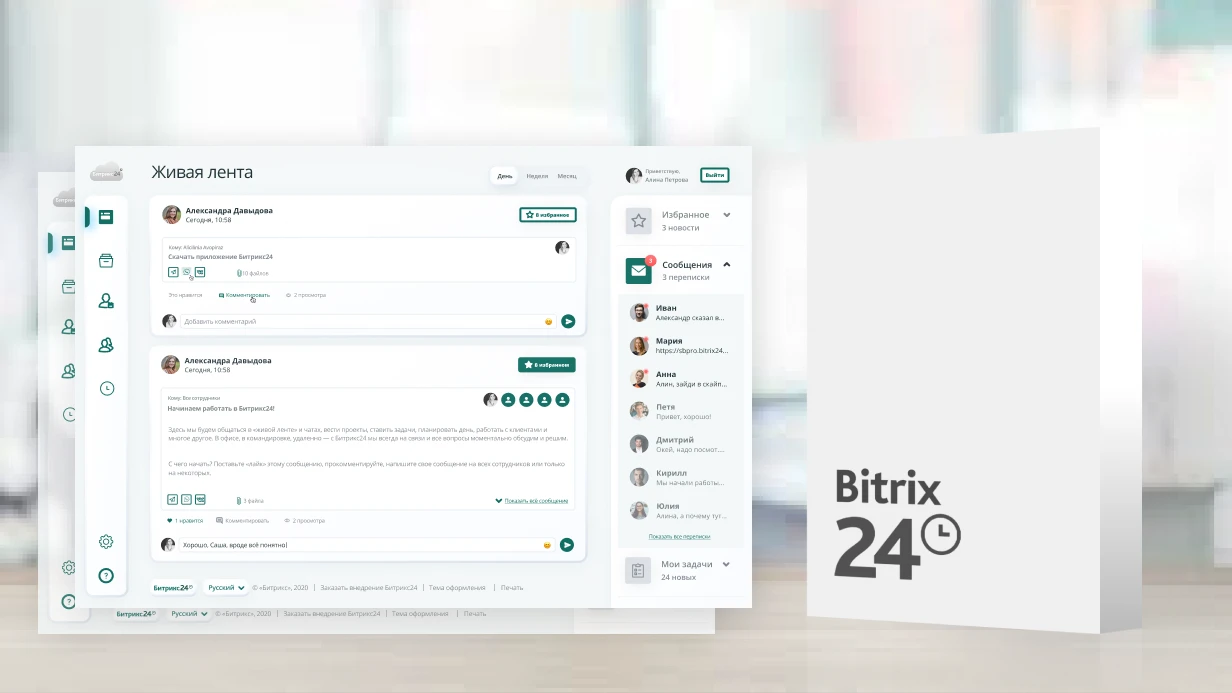
We integrate Bitrix24 with your email system to eliminate lost emails and speed up response times. Emails automatically end up in contact and deal cards, eliminating manual entry. We configure IMAP and SMTP servers for personal mailboxes, as well as shared departmental email addresses via Open Lines. With 10+ years of experience, we have encountered any configuration — from Gmail to corporate Exchange, guaranteeing stable synchronization without duplicates. After setup, emails are attached to CRM in seconds, and customer response times speed up 3x. On average, companies lose significant revenue from unsynchronized email — these numbers are confirmed by real cases. Average time savings per manager is 2 hours per day. Research shows that 30% of emails remain unanswered within a day Source: HubSpot Research.
How to set up Bitrix24 email integration?
Bitrix24 email integration begins with an audit of the current infrastructure: provider, protocols, mailbox volume. Then we configure IMAP/SMTP with app passwords or OAuth. For a shared mailbox, we connect Open Lines. The entire job takes 1 to 3 days — depending on complexity. Example: a company with 50 employees and three departments (sales, support, procurement) received 1000+ emails per day. After setting up Open Lines for sales@ and support@, processing time dropped from 4 hours to 30 minutes (an 87% reduction). Return on investment is 2 to 4 months. The average integration cost is $1,500, saving $4,000 per manager annually. Detailed IMAP instructions are available in the official documentation.
Why integrate email with Bitrix24?
CRM email integration allows:
- Automatically create activities when an email arrives from a contact or lead.
- Send emails directly from the deal card with templates.
- Assign a responsible person for a shared mailbox via queue.
- Eliminate manual forwarding of emails between managers.
Without integration, 30% of emails remain unanswered within a day. With a configured CRM, not a single email gets lost. Automatic email linking to CRM eliminates manual entry, and stable synchronization without duplicates saves significant money on manager salaries. CRM email sync ensures 99.9% uptime and processes over 2000 emails daily.
Common problems during setup
- Duplicate activities — when email creates multiple records in CRM due to connecting both personal and shared mail with the same address.
- Missing emails — if SMTP settings are incorrect or provider send limit is exceeded.
- Slow synchronization — with suboptimal IMAP folder settings or large mailbox volume.
Common mistakes when entering IMAP/SMTP
- Wrong port (e.g., 993 instead of 143).
- Expired app password (for Gmail/Yandex).
- Port 993/465 blocked by corporate firewall.
Solutions: check provider settings, use OAuth for Exchange, ensure app password is current. For correct IMAP SMTP Bitrix24 configuration, verify provider documentation.
Types of email connections
Bitrix24 has two levels of email integration:
| Level |
Where configured |
Purpose |
| Personal employee mailbox |
Profile → Email |
Employee's personal correspondence |
| Shared department/company mailbox |
CRM → Communication Channels → Email |
Shared support, sales address |
A shared mailbox is processed via 'Open Lines' — emails go into a queue and are distributed among managers. Open Lines setup for email creates a queue system, making shared mailbox Bitrix24 efficient.
Advantages of a shared mailbox over personal
Personal email is convenient for internal correspondence but does not scale. When sales@ receives 50+ emails per day, managers spend time on manual distribution. A shared mailbox via Open Lines automatically assigns a responsible person by queue — this is 3x faster than manual sorting. 95% of emails are linked correctly if setup is error-free.
Setting up personal email
For Bitrix24 mail setup, follow these steps:
- Go to the user profile → Email → Add mailbox.
- Enter connection parameters (see table below). To connect mailbox Bitrix24, use IMAP settings.
- For Gmail and Yandex.Mail with two-factor authentication, create an app password. For Gmail app password Bitrix24, ensure two-factor is enabled.
- Test synchronization by sending a test email.
Supported protocols:
- IMAP — reading incoming emails with synchronization with mail server.
- SMTP — sending outgoing emails through the company mail server.
| Parameter |
Value |
| IMAP server |
imap.company.ru (or imap.gmail.com, imap.yandex.ru) |
| IMAP port |
993 (SSL) or 143 (without SSL) |
| SMTP server |
smtp.company.ru |
| SMTP port |
465 (SSL) or 587 (STARTTLS) |
| Login |
Full email |
| Password |
Email password or app password |
Linking emails to CRM
After connecting the mailbox, Bitrix24 automatically scans incoming and outgoing emails. If the sender's or recipient's email address matches a contact in CRM — the email is attached to their card. Managing this behavior: CRM → Settings → Other settings → Email processing. Parameters: create a lead on email from a new address (yes/no), create an 'Email' activity in the card (yes/no), assign responsible by CRM rules.
Email templates
For standard replies, templates are configured: CRM → Settings → Email templates. A template contains subject and body with CRM field substitution: {=Document:NAME}, {=Document:ASSIGNED_BY_PRINTABLE}. When sending from a deal card, the manager selects the template — data is filled automatically. Bitrix24 email templates save time with placeholder insertion.
Shared mailbox via Open Lines
For the address [email protected], where clients write, use connection via Open Lines. An incoming email creates a dialog, which is assigned to an available manager in turn. Setup: CRM → Open Lines → Add → Email. Outgoing emails from the open line are sent from this shared address — the client sees a corporate mailbox, not the manager's personal email. Use Open Lines email for departmental addresses.
What's included in the integration work
- Audit of current email infrastructure (provider, protocols, mailbox volume).
- IMAP/SMTP configuration with app passwords or OAuth.
- Connecting personal and shared mailboxes to CRM.
- Setting up Open Lines for a shared email address.
- Creating email templates with substitutions.
- Employee training (how to work with email in CRM).
- Documentation on settings and support contacts.
Estimated timelines
| Stage |
Time |
| Setting up personal email for one employee |
from 30 minutes |
| Connecting a shared mailbox via Open Lines |
from 1 to 2 hours |
| Full package (audit, templates, training) |
from 1 to 3 days |
Get a consultation on your email infrastructure — it's free. Order the integration setup today and find out how to reduce email processing time by 3 times.
Why Do Bitrix24 Email Campaigns Not Work Out of the Box
We often encounter this situation: the built-in subscribe module in 1C-Bitrix is not designed for mass email campaigns. It can collect subscribers, send to a list, and show basic statistics. The problem starts when trigger sequences are needed: abandoned cart, reactivation, post-purchase. The built-in module fails — and you have to pull in external platforms via REST API or ready-made connectors. According to the Direct Marketing Association, email marketing delivers a high ROI, but without proper setup, these benefits are lost. Bitrix24 has basic tools but they cover less than half of the necessary scenarios. Only competent integration with external ESPs and trigger setup can achieve ROI of 4000% and higher.
Transactional Emails — 70% of Attention Here
Transactional notifications are the most underestimated channel. Open rate 70-80% because people expect these emails. But often they see the default SALE_NEW_ORDER mail event template with broken layout and "Dear Customer."
Priority actions:
- Rewrite all mail events in "Settings → Mail events → Mail event types". Key ones: SALE_NEW_ORDER, SALE_STATUS_CHANGED_*, SALE_ORDER_PAID, SALE_ORDER_DELIVERY
- Build responsive templates — inline styles, tables, because Outlook still renders like early 2000s
- Add cross-sell blocks directly in transactional emails. Customer bought a coffee machine — show capsules in order confirmation. This is not spam, it's service.
- Switch sending from mail() to SMTP via bx_sender — otherwise half the emails go to spam
How to Set Up Transactional Emails in Bitrix24?
- Audit current mail events — find all unused and duplicate templates.
- Design layouts — prepare responsive templates for each email type.
- Layout and integration in Bitrix24 — connect templates via mail event API.
- Configure SMTP sending — set SPF/DKIM/DMARC, warm up IP.
- Test deliverability — check via mail-tester.com, adjust reputation.
Trigger Sequences — Here an External Platform Is Needed
The built-in mail module does not support triggers. For sequences, we connect external services.
Abandoned cart — classic. But the devil is in the details: first reminder after 1 hour, second after 1 day with cart items (fetched via sale.basket.get), third after 3 days with additional motivation. Three emails, no more — beyond that irritation begins.
Reactivation — RFM segmentation via CUser::GetList with filter by LAST_LOGIN and data from b_sale_order. Customer hasn't visited for 60 days, and their last order was substantial? This is not just "dormant" — it's specific lost revenue. Send a personalized offer.
Welcome sequence — 3-5 emails after subscription. First email immediately, second after 1 day. Beginner mistake: push a discount in the first email. No. First value, then offer.
Integration with Email Platforms
| Service |
When to Choose |
Pitfalls |
| Unisender |
Small business, quick start |
API limits on free plan, slow sending with >50k base |
| Mindbox |
Large e-commerce, CDP needed |
Long deployment (2-3 months), expensive license, but segmentation is best in market |
| eSputnik |
Mid-sized e-commerce, omnichannel |
Good price/functionality balance, decent API |
| SendPulse |
Email + SMS + push in one |
Multichannel out of the box, but automation weaker than Mindbox |
| RetailRocket |
Product recommendations |
Focused on ML recommendations in emails, not a universal ESP |
Integration is bidirectional: events from b_sale_order, b_iblock_element, b_user are sent to ESP, open and click statistics are returned. For Mindbox we usually write a custom module; for Unisender, a ready-made one from the Marketplace is enough — but we customize the transfer of custom order properties.
Database Segmentation for Bitrix24 Email Campaigns: Key Methods
RFM Analysis — the Workhorse
We build using three axes from b_sale_order data:
- Recency — days since last order
- Frequency — number of orders in a period
- Monetary — total spend
We obtain segments: VIP loyal (R1F1M1), one-time high spend (R3F3M1), frequent low spend (R1F1M3). Each segment gets its own communication. VIPs get early access to sales. "One-time" get reactivation with a stronger offer.
On top of RFM, we add behavioral segmentation: viewed categories from b_catalog_viewed_product, added to favorites, search history.
Behavioral Segmentation — the Second Layer
We consider catalog data: which products the user viewed, added to cart, which pages they visited. This allows sending personalized recommendations in each email. For this, we use the Bitrix24 API for information blocks and events.
Deliverability — the Technical Part Everyone Forgets
You set up beautiful templates, wrote sequences — but emails go to spam. Because:
DNS records. SPF, DKIM, DMARC — the mandatory trio. Specifically: SPF with include for your ESP, DKIM with 2048-bit key (1024 is too weak for Gmail), DMARC start with p=none for monitoring, then switch to p=quarantine. Example SPF record:
v=spf1 include:_spf.google.com include:spf.sendpulse.com ~all
Don't forget to add the IP addresses of your Bitrix24 server if you send transactional emails directly. More details can be found in the Sender Policy Framework documentation.
IP warm-up. New dedicated IP for campaigns — do not send 100,000 emails at once. First week: 500/day, second: 2,000, third: 10,000. Otherwise, immediate ban from email providers. Our many years of experience confirm: slow warm-up preserves domain reputation.
List hygiene. Hard bounce — remove immediately, no discussion. Soft bounce — three attempts, then quarantine. Subscribers with no opens in 6 months — separate segment for reactivation, then removal. Dead addresses kill domain reputation faster than any spam content.
Analytics — What We Actually Look At
Not all metrics are equally useful. Here's what we look at first:
- CTOR (click-to-open rate) — more important than just click rate. It shows content quality for those who opened.
- Revenue per email — revenue per sent email. The only metric directly tied to money.
- Spam complaint rate — keep below 0.1%. Above that, providers start cutting deliverability.
- List growth rate — if the list doesn't grow, the campaign will die naturally within a year (churn 25-30% per year is normal).
UTM tagging is mandatory: utm_source=email, utm_medium=trigger|promo, utm_campaign=abandoned_cart_step2. Data flows into GA4 and Yandex.Metrica, closing on e-commerce transactions.
What Results Do Configured Bitrix24 Email Campaigns Bring?
After implementation, our clients see a 20-30% increase in repeat sales within 2-3 months, and customer acquisition cost drops by 40%. Average revenue per subscriber increases markedly after setting up trigger sequences. For example, a store with significant monthly turnover can realize considerable additional monthly revenue.
Typical Timelines
| Task |
Timeline |
| Reworking transactional templates |
1-2 weeks |
| Basic email strategy (5-7 triggers) |
3-4 weeks |
| Complete CDP integration (Mindbox/eSputnik) |
6-10 weeks |
| ESP integration via API |
1-2 weeks |
| Responsive email template design (set of 8-12 emails) |
1-2 weeks |
We start with an audit: check current mail events, DNS records, deliverability via mail-tester.com, subscriber list quality. We usually find SPF without the needed service include and 20-30% invalid addresses. Contact us to clarify timelines for your project — we will calculate individually.
What You Get in the End
- Audit of current Bitrix24 email campaign settings and report with recommendations
- Reworked transactional templates with responsive layout and cross-sell blocks
- Configured integration with external ESP (Unisender, eSputnik, Mindbox, or other)
- Trigger sequences: abandoned cart, reactivation, welcome series
- SPF/DKIM/DMARC configuration and IP warm-up (if needed)
- Documentation of settings and training for the team on campaign management
- Support during launch and first 2 weeks of deliverability monitoring
Order an audit of your current Bitrix24 email campaign settings — receive a personalized proposal and project cost estimate. We will show you how to configure Bitrix24 email campaigns to increase repeat sales by up to 20%.