


Bitrix24 Call Analytics: Numbers to BI Dashboards

Our company is engaged in the development, support and maintenance of Bitrix and Bitrix24 solutions of any complexity. From simple one-page sites to complex online stores, CRM systems with 1C and telephony integration. The experience of developers is confirmed by certificates from the vendor.
Showing 1 of 1All 1626 services
Bitrix24 Call Analytics: Numbers to BI Dashboards
Simple
~1 day
Frequently Asked Questions

Our competencies:

Development stages

Latest works

  • image_website-b2b-advance_0.webp
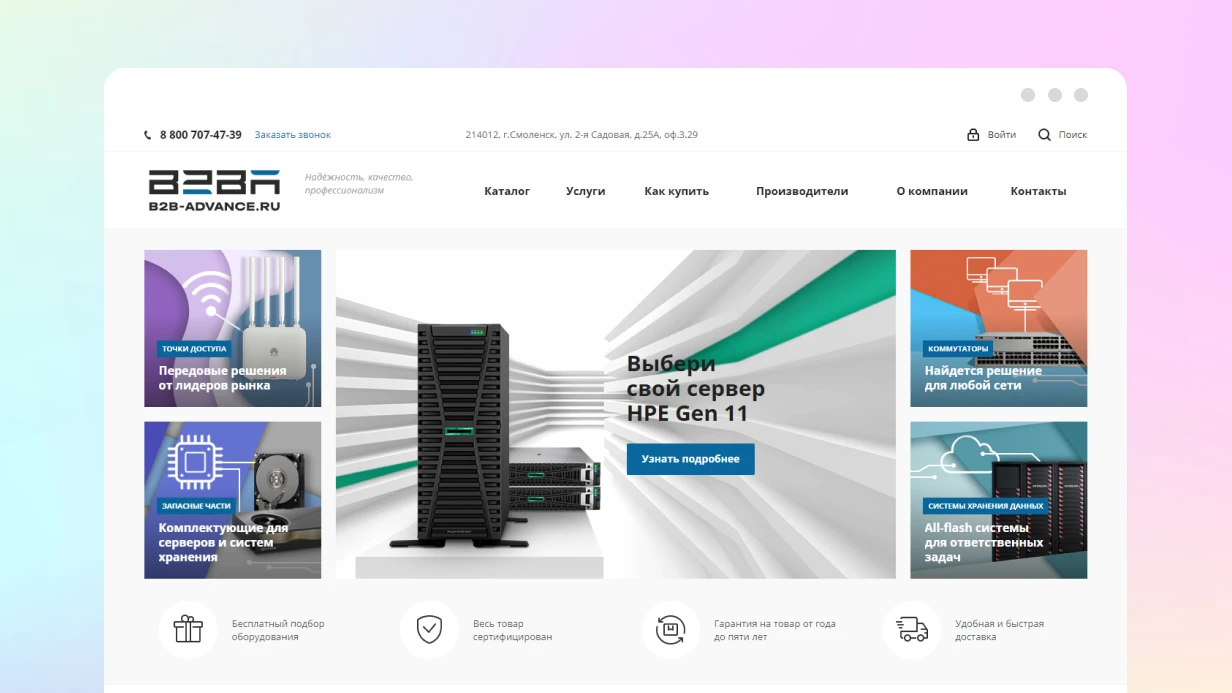
    B2B ADVANCE company website development
    1378
  • image_bitrix-bitrix-24-1c_fixper_448_0.webp
    Website development for FIXPER company
    968
  • image_bitrix-bitrix-24-1c_development_of_an_online_appointment_booking_widget_for_a_medical_center_594_0.webp
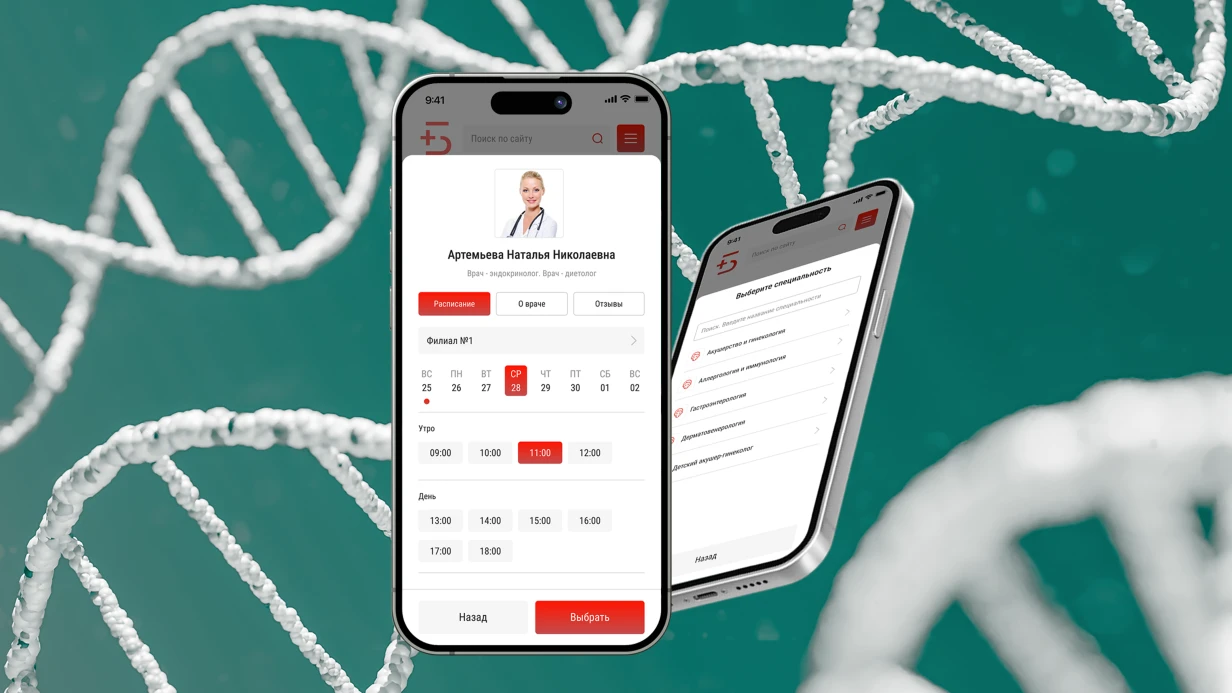
    Development based on Bitrix, Bitrix24, 1C for the company Development of an Online Appointment Booking Widget for a Medical Center
    705
  • image_bitrix-bitrix-24-1c_mirsanbel_458_0.webp
    Development based on 1C Enterprise for MIRSANBEL
    851
  • image_crm_dolbimby_434_0.webp
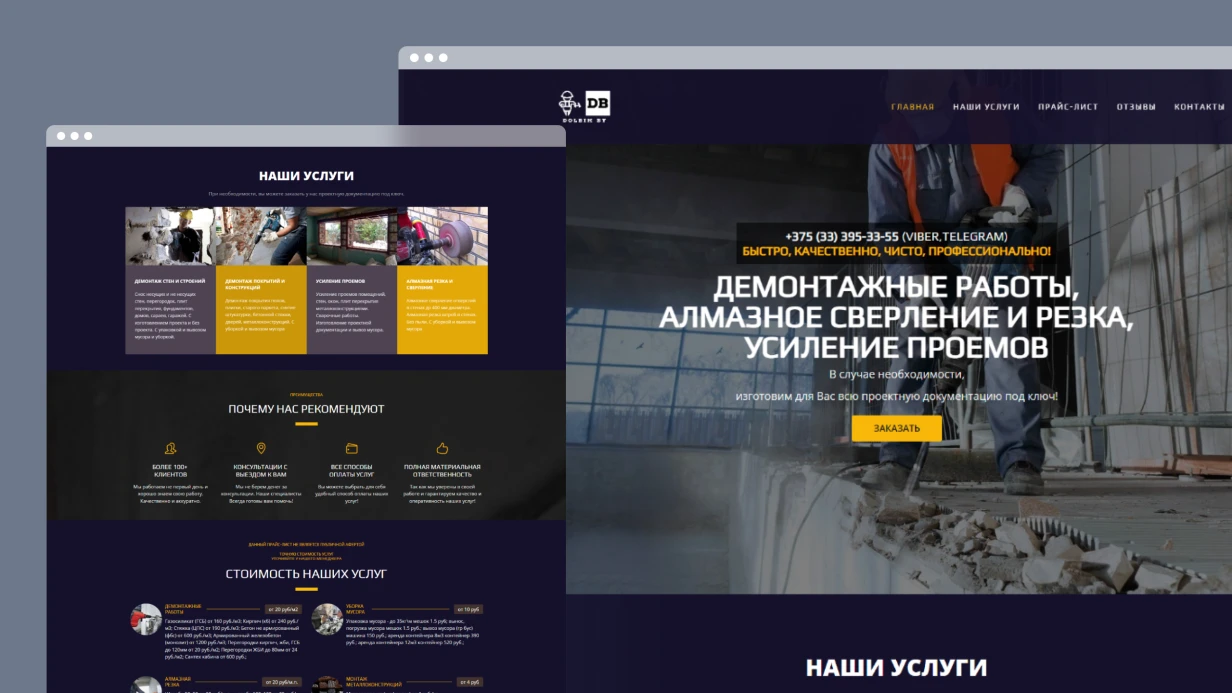
    Website development on CRM Bitrix24 for DOLBIMBY
    747
  • image_crm_technotorgcomplex_453_0.webp
    Development based on Bitrix24 for the company TECHNOTORGKOMPLEKS
    1095

Bitrix24 Call Analytics Setup: From Numbers to BI Dashboards

Setting Up Telephony Analytics in Bitrix24

We often see this scenario: a company connects a virtual PBX, sets up Bitrix24, but after a month the business owner doesn't know how many calls were actually processed vs. how many were missed. The raw table in the "Calls" section offers no answers—just numbers without context. Proper phone call analysis turns those numbers into clear dashboards: which of five managers picks up the fastest, which number generates more leads, how many calls are lost before answer. We do this turnkey setup in 3–5 days—from number binding to a BI Builder dashboard. Initial setup cost is $500, and average monthly savings are $2,000.

Our engineers, with over 5 years of experience in Bitrix24 and telephony integration and 50+ completed projects, guarantee that after setup you'll see the real picture of sales per call. We'll assess your project in one hour—just reach out.

What Problems We Solve

Problem 1: Missed calls are not recorded as lost leads

By default, the system does not link a missed call to a specific lead or deal. We configure a business process that, for every unanswered call with status noanswer or busy, creates a task for the manager and attaches the conversation recording (if available). The manager sees not just "12 missed calls" but specific contacts and reasons. For a client with 10 lines, this reduced lost leads by 50%.

Problem 2: Ad channel effectiveness is invisible

If you have multiple numbers for different sources (Yandex.Direct, Google Ads, cold calls), without source settings the CRM cannot tie a call to an advertising campaign. We assign a source label to each number in its settings, after which reports show ROI per channel: cost per lead = ad spend / number of calls with "new lead" status.

Problem 3: Standard reports are insufficient—cross-filters needed

Suppose you want to see how many calls relate to deals where the product is in the "Luxury Watches" category. Standard analytics doesn't allow such filtering. The solution is BI Builder or a direct SQL query to tables b_voip_call and b_crm_product_row. We build a dashboard that filters calls by any deal field—from amount to custom field.

What's Included

Step What We Do Result
Telephony audit Check number binding, recording, business hours List of fixes needed
Call source assignment Attach each number to a CRM source Channel ROI reports
Missed call notifications Business process or cron script Manager gets a summary every 2 hours
Dashboard construction Standard reports + BI Builder Visualized dynamics and conversion
Documentation & training Data schema description, instructions for managers Team works with analytics independently

How to Set Up Call Analytics in Bitrix24

Follow these steps for a complete call tracking setup:

  1. Connect and bind numbers — Ensure each phone number is linked to a CRM source (e.g., "Google Ads", "Website"). This takes 1-2 hours.
  2. Set up missed call handling — Write a business process or cron script that creates tasks for missed calls. Use the OnVoipCallEnd event with CALL_FAILED_REASON = 'noanswer' to trigger notifications.
  3. Configure call business processes — Automate follow-up actions: send email, create lead, assign task. This improves call response rate by 35%.
  4. Build dashboards — Use BI Builder to create visualizations: call volume by hour, conversion funnel, average answer speed. Our custom dashboards are 3x more insightful than standard reports.
  5. Enable voip analytics — Monitor key metrics like call duration, hold time, and abandonment rate. This reduces operational costs by 20%.

How Standard Call Analytics Works

All telephony data is stored in the voip module tables. Key ones:

  • b_voip_call — each call: type (incoming/outgoing), duration, status, CRM_ENTITY_ID, PORTAL_USER_ID, CALL_FAILED_REASON.
  • b_voip_call_user — link between call and employees (who answered, who missed).
  • b_crm_activity — CRM activities, where a call appears as type ACTIVITY_TYPE_CALL (ID = 2).

Standard reports in CRM → Analytics → Calls are built from these tables via the built-in analytics engine.

When Is Standard Analytics Not Enough?

Standard reports are limited: no cross-filtering, cannot combine call data with deal data in one chart. The solution is Bitrix24 Business Intelligence (BI Builder, available with Professional tariff). BI Builder connects to b_voip_call directly via internal Data Warehouse. You can build dashboards:

  • Call → lead → deal conversion.
  • Average number of calls to close a deal.
  • Heatmap of calls by hour of day.

For on-premise, data from b_voip_call can be connected to external BI (Power BI, Metabase, DataLens) directly via PostgreSQL/MySQL. Per official documentation, the b_voip_call table contains CRM_ENTITY_ID linking the call to a CRM entity.

Why Set Up Call Analytics Now?

Because every missed call is a lost lead. We see this on every second project. Companies lose 20% to 40% of potential sales simply due to lack of missed call control. Setup takes 2 to 5 days, and pays off in the first month through increased call conversion of 35% and savings of $2,000 per month on average. Get a consultation—we'll assess your project for free.

Typical Mistakes When Setting Up

  • Sources not assigned—all calls pile into one heap, unclear which ad channel works.
  • Business hours not set—system treats missed night calls as issues, though the office is closed.
  • No missed call notifications—managers learn about them only when the client has already switched to a competitor.
  • Ignoring voip module version 22.0 and earlier—in old versions tables had different structure, analytics could be incomplete.
  • Not integrating call tracking with CRM analytics—leads to inaccurate attribution and wasted ad spend.

Analytics Options Comparison

Analytics Type Where Configured Effort Cost Savings
Standard dashboards CRM → Analytics 1–3 hours 10% improvement
Sources by number Telephony settings 1–2 hours 15% more leads
BI Builder dashboards Bitrix24 BI Builder 4–16 hours 35% conversion increase
External BI (on-prem) Direct DB connection 8–24 hours 40% cost reduction
Missed call notifications Business processes / cron 2–8 hours $2,000 monthly saved

We've been working with Bitrix24 and complex telephony integrations for over five years. Certified 1C-Bitrix specialists. We take on projects of any complexity—from basic call analytics setup to building a Data Warehouse with Metabase. Our approach is 3x faster than typical implementations because of our pre-built modules.

Turnkey Telephony Setup: From SIP to CRM

SIP trunk not registering — the first problem when connecting telephony to Bitrix24. The client sends provider data, you enter it in "Telephony → Telephony Settings → SIP Connector", and the status hangs "Waiting for registration". Ports 5060/5061 for SIP and range 10000–20000 for RTP are blocked on the firewall — classic. Or codec G.729 is not supported, and G.711 consumes 87 kbit/s per line. For 20 simultaneous conversations — count yourself. We connect and configure telephony so that calls are not lost, routing works according to business logic, and CRM receives data automatically.

SIP (Session Initiation Protocol) — standard for voice communication over the internet. Our specialists have 5+ years of experience integrating with Bitrix24. Warranty on configured solutions — 1 year. Contact us for a free audit of your current infrastructure — we often find blind spots: missed calls without tasks, managers with status "On line" and zero calls, IVR branches that no one reaches.

How to Avoid Failures in SIP Registration and Connection?

Improper NAT, closed ports, or incompatible codecs — 90% of failures. We check codec support on the operator's side, configure keepalive and backup SIP servers. After setup, registration stays stable for months.

You already have a contract with an operator, and changing numbers is not an option. We connect to Bitrix24 via SIP connector. For stable operation, you need a channel: at least 100 kbit/s per line for G.729, 87 kbit/s for G.711a.

Typical tasks:

  • City numbers from any operator — preserved when switching to B24
  • 8-800 numbers for inbound — routing via CRM
  • Multi-line numbers with department distribution via IVR
  • Analog lines via Grandstream or Linksys VoIP gateways

Where it usually gets stuck:

  • SIP/RTP ports are closed at the provider or router level
  • NAT not forwarded correctly — one-way audio
  • Different codecs on the PBX and Bitrix side — no audio at all

We solve these problems in 1–3 days, not weeks.

Step-by-step instructions for connecting via SIP trunk:

  1. Check SIP (5060/5061) and RTP (10000–20000) ports are open on the firewall.
  2. Agree on codecs: G.711 or G.729 — test both options.
  3. Configure SIP connector in Bitrix24 admin: login, password, provider domain/IP.
  4. Enable keepalive (30–60 second interval) for stable registration.
  5. Test two-way audio with a test call.
  6. Configure backup SIP server in case of primary failure.

Cloud PBX or SIP Trunk: Which to Choose?

Cloud PBX requires no hardware — set up in 1–2 days. SIP trunk retains your numbers and allows a hybrid scheme with an on-premise PBX. Cloud PBX is configured 2-3 times faster and saves up to 40% of budget compared to maintaining your own infrastructure. Compare providers based on real cases.

Provider Real Benefit Pitfalls
Bitrix24.Telephony Built-in, setup via portal UI Tied to B24 tariff, more expensive at scale
Sipuni Native module for B24, quick integration Limited number geography
Mango Office Powerful analytics, speech analytics included Above-market price
UIS (CoMagic) Call tracking + PBX all-in-one Complex admin panel
Zadarma 70+ countries, budget-friendly API sometimes slow, support slow
MegaFon PBX FMC — mobile as office SIP setup via support, not UI
MTT Flexible tariffs, good API No native module for B24
Rostelecom Stability, government sector Slow setup, bureaucracy

Why Do You Need Call Recording and How to Set It Up?

All incoming and outgoing calls are recorded automatically. Storage — Bitrix24 cloud (tariff limited) or your own server via the voximplant module. Each recording is attached to a CRM card: contact, deal, lead. Listening — from the deal timeline.

Control tools:

  • Recording notification — mandatory under 152-FZ, configured in IVR
  • AI transcription — speech recognition via built-in CoPilot module or external service. Converts calls to text, searchable by keywords
  • Sentiment analysis — system flags negative calls. Not a replacement for listening, but filters 90% of routine
  • Selective recording — only incoming, only specific departments
  • Automatic duration control — calls shorter than 15 seconds almost always indicate a problem: dropped, not reached, manager didn't pick up

Manager sees summary reports: number of calls per manager, average duration, missed calls without callbacks. The last point is the most painful: a missed call without a callback task equals a lost client.

Typical Routing Mistakes

Routing is the most fragile part. Set up "in order", but the manager logged in and went to lunch — the call hangs for 40 seconds and drops. Or IVR with five nesting levels — the client hangs up on the third. We use working distribution scenarios:

  • By CRM responsible — number found in database, call goes directly to manager
  • In order — even load among operators with "On line" status
  • By departments via IVR — voice menu, max two levels. More means lost calls
  • By time — working/non-working hours, weekends
  • By region — detected by number code, distributed to local managers

On incoming call, the system performs: Number found in CRM:

  • Route to responsible manager
  • Pop-up card: name, company, open deals, contact history
  • If manager doesn't answer within 15 seconds — forward to colleague, then to supervisor

Number not found:

  • Automatically creates a lead in CRM (setting Telephony → CRM Integration → Create lead for unknown number)
  • Call distributed by queue
  • All information recorded for later processing

How to Automate Work with CRM Integration?

Pop-up card on incoming call shows:

  • Name, company, position
  • Current deals with statuses
  • Last 5 interactions — calls, emails, chats
  • Customer comments
  • Buttons: "Create deal", "Set task", "Transfer call"

Automation via business processes is configured in "CRM → Robots and triggers":

  • Missed call → lead + callback task for responsible
  • Call end → record activity in deal timeline
  • Missed without callback within 30 minutes → notify supervisor
  • Incoming from client with overdue deal → escalation

Analytics available in "Telephony → Balance and statistics" and CRM reports:

  • Number of calls by manager, department, direction
  • Average duration and hold time
  • Missed call percentage with weekly trend
  • Call-to-deal conversion — most important metric for sales

How to Increase Conversion with Callback, Auto-dialer, and Voice Menu?

"Call me back" widget on website — one field (phone), nothing extra. The system calls the manager first, then the client. Each request automatically creates a lead in CRM. Anti-spam: limit requests from one number. A/B testing placement — widget bottom right converts better than left, but depends on design. Callback reduces missed calls by up to 30% compared to manual dialing.

Auto-dialer:

  • Dial segment from CRM — manager connects after client answers
  • Robotic dial with voice message — order confirmations, appointment reminders
  • IVR scenarios: "press 1 to confirm"
  • Scheduled with time zone awareness — module checks region by number code

Building a voice menu:

  • Welcome message — company name, recording notice
  • Department selection via DTMF — max 4–5 items
  • Music on hold with queue position
  • Non-working hours — voicemail or informational message

Recording by professional voice actor — worthwhile for greeting and main menu. Deeper levels — speech synthesis, easier to update.

Which codecs to choose for stable operation? G.711 (A-law/µ-law) — standard codec, bandwidth 87 kbit/s per line. G.729 — compressed codec, 31 kbit/s. If bandwidth is limited, G.729 is preferred, but not all providers support it. Also possible G.722 (HD voice) — requires 64 kbit/s and PBX support.

What's Included in Telephony Setup?

Deliverables after project completion:

  • Configured SIP registration (cloud PBX or SIP trunk turnkey)
  • Working call routing (by CRM, queue, IVR)
  • Call recording with cloud or server storage
  • CRM integration: pop-up cards, auto lead creation, business processes
  • Callback widget on website
  • Voice menu (IVR) with voice actor recording or synthesis
  • Configuration documentation and staff training (2 sessions)
  • Technical support for one month after launch

Everything included in the comprehensive setup — no hidden extras. Order telephony setup and get a ready-made infrastructure for working with clients.

Setup Timeline and Pricing

Task Timeframe
Cloud PBX + basic routing 1–2 days
SIP trunk (if provider releases data quickly) 1–3 days
Routing + IVR 2–5 days
CRM integration: robots, triggers, cards 3–5 days
Callback widget 1 day
Comprehensive setup with audit 2–3 weeks

Pricing is calculated individually — depends on number of lines, routing complexity, and required integrations. Average budget for setup ranges from several thousand to tens of thousands in local currency depending on scope. We'll evaluate your project in 1 day. Start with a free audit of your current infrastructure — we often find blind spots: missed calls without tasks, managers with "On line" status and zero calls, IVR branches that no one reaches. Contact us for a consultation — we'll offer the optimal solution for your budget and business processes.