


SIP Telephony Setup in Bitrix24: Integration, Routing, CRM

Our company is engaged in the development, support and maintenance of Bitrix and Bitrix24 solutions of any complexity. From simple one-page sites to complex online stores, CRM systems with 1C and telephony integration. The experience of developers is confirmed by certificates from the vendor.
Showing 1 of 1All 1626 services
SIP Telephony Setup in Bitrix24: Integration, Routing, CRM
Simple
~1 day
Frequently Asked Questions

Our competencies:

Development stages

Latest works

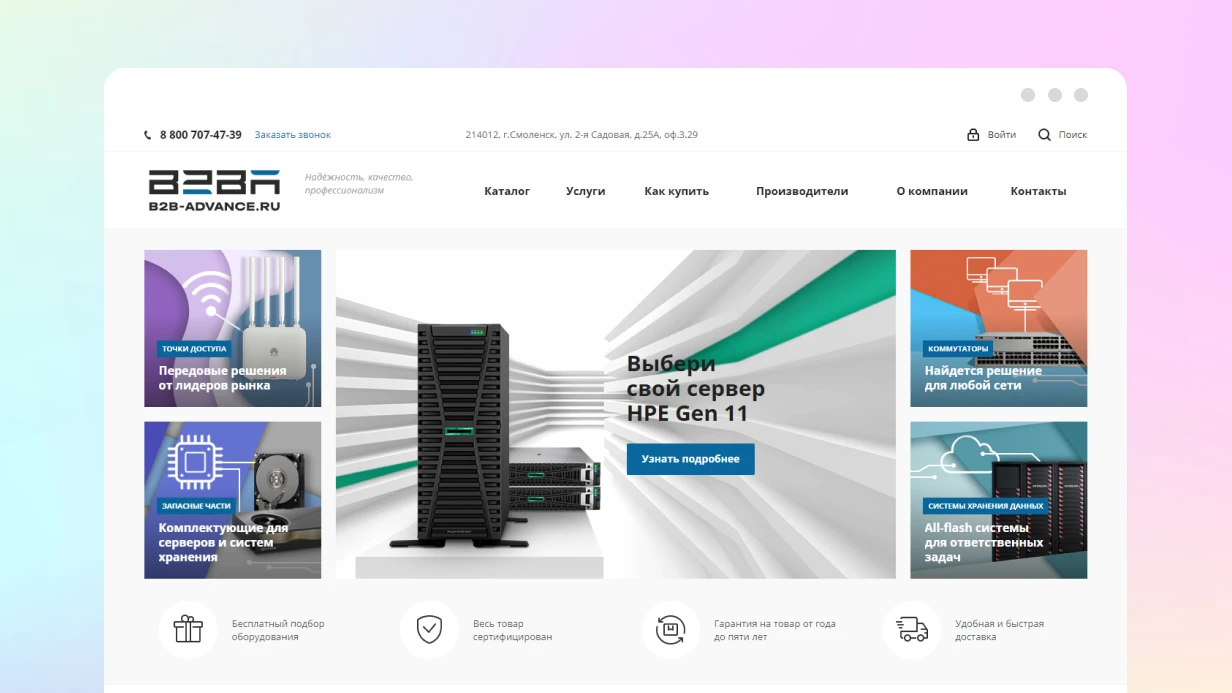
  • image_website-b2b-advance_0.webp
    B2B ADVANCE company website development
    1356
  • image_bitrix-bitrix-24-1c_fixper_448_0.webp
    Website development for FIXPER company
    943
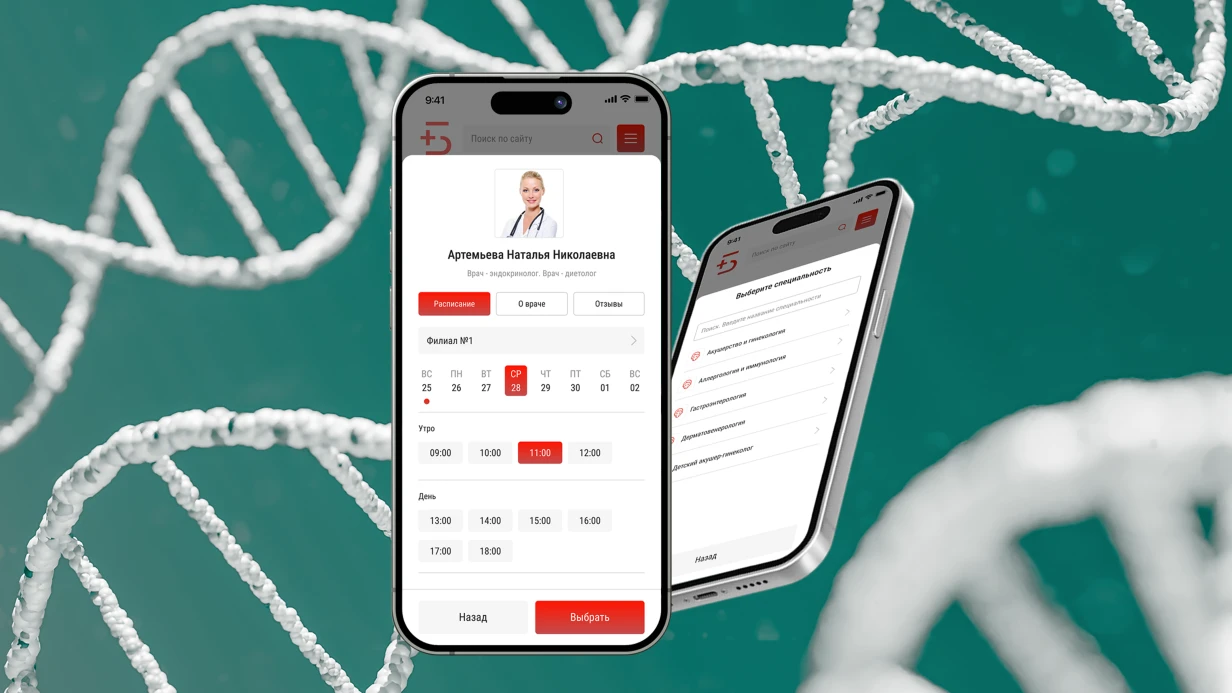
  • image_bitrix-bitrix-24-1c_development_of_an_online_appointment_booking_widget_for_a_medical_center_594_0.webp
    Development based on Bitrix, Bitrix24, 1C for the company Development of an Online Appointment Booking Widget for a Medical Center
    693
  • image_bitrix-bitrix-24-1c_mirsanbel_458_0.webp
    Development based on 1C Enterprise for MIRSANBEL
    828
  • image_crm_dolbimby_434_0.webp
    Website development on CRM Bitrix24 for DOLBIMBY
    731
  • image_crm_technotorgcomplex_453_0.webp
    Development based on Bitrix24 for the company TECHNOTORGKOMPLEKS
    1073

When an incoming call to Bitrix24 doesn't recognize the client's number, or drops after 30 seconds — that's a typical story from the first SIP telephony setup. If managers hear themselves with a delay, it's one-way audio due to incorrect NAT. A company connects a SIP trunk, but without proper routing, calls fall into a black hole. We break down such cases every month. For a chain of 15 coffee shops, we set up an IVR with zone-based distribution, cutting phone order processing time by 30%. Our team has completed over 120 SIP connections for retail, logistics, and services. Proper SIP telephony setup in Bitrix24 reduces communication costs by up to 40% and boosts call conversion. Contact us for an audit of your infrastructure.

How SIP Telephony Works in Bitrix24

Bitrix24 acts as a SIP client or manages a cloud PBX. The SIP protocol transmits voice over IP. An incoming call follows this path:

  1. Subscriber dials the number.
  2. The carrier (SIP provider) accepts the call and forwards it to the Bitrix24 PBX.
  3. Bitrix24 determines the route: by queue, responsible person in CRM, or schedule.
  4. The manager answers via a browser phone (WebRTC), desktop app, or physical SIP phone.

The entire process is managed by the telephony module. Settings are stored in the b_voip_* tables and edited through CRM → Telephony.

What Is Needed to Connect SIP Telephony?

A phone number. You can either rent one directly from Bitrix24 (via Telephony → Connect number) or port an existing operator number by connecting a SIP trunk.

Choice of connection scheme. Compare three options:

Parameter Bitrix24 Cloud PBX SIP Trunk External PBX (Asterisk)
Number Rent from Bitrix24 Your existing Your existing
Routing Within the platform Through Bitrix24 settings Configured on PBX
Connection speed 1-2 hours 2-4 hours 4-8 hours
Flexibility Limited High Maximum
Cost Fixed rental Provider fee + integration PBX cost + integration

For most companies, the SIP trunk is optimal: it processes high call volumes faster than a cloud PBX and doesn't lock you into a specific provider.

Inbound routing setup. In Telephony → Settings, configure call handling: queue, simultaneous ring to all, forwarding to a specific employee, or IVR (voice menu).

How to Connect a SIP Trunk to Bitrix24?

Connecting a SIP trunk is one of the most common requests. Step-by-step guide:

  1. Obtain login, password, and server address from your SIP provider.
  2. In Telephony → SIP Connector, select 'Connect SIP trunk'.
  3. Enter the account details. Specify NAT parameters if employees work remotely.
  4. Configure inbound call routing (IVR, queue, business hours).
  5. Verify registration: status should change to 'Registered'.

According to official Bitrix24 documentation, for stable operation you need to open UDP ports 10000-20000 for RTP and port 5060 for SIP. After successful registration, make a test call. If audio is one-way, check the STUN server settings.

Why Calls Don't Go Through After Setup?

Three most common reasons:

  • One-way audio — usually a NAT issue. SIP signaling passes, but the RTP media stream is blocked by the router. Solved by configuring a STUN server in the SIP account settings or opening the UDP 10000-20000 port range on the router.
  • Calls don't arrive — check the SIP account registration status in Telephony → SIP Connector. Often the cause is an incorrect password or IP block on the provider's side.
  • Echo on the line — an acoustic suppression issue. In the browser client, it's resolved by WebRTC settings; on a physical phone, by hardware handset settings.

Resolving one-way audio: verify that the SIP account settings specify a correct STUN server (e.g., stun.l.google.com). Ensure the firewall isn't blocking UDP 10000-20000. If the issue persists, configure port forwarding on the router or use a SIP provider that supports ICE.

What Problems Arise When Setting Up SIP?

  • One-way audio: open UDP ports 10000-20000, configure STUN server. Check that the firewall isn't blocking the media stream.
  • Calls don't reach: ensure the SIP account is registered. Often the cause is an incorrect password or IP block by the provider.
  • Echo on the line: in the browser client, check WebRTC settings; on a physical phone, handset quality.

Integrating Calls with CRM

On an incoming call, Bitrix24 looks up the number in the CRM database. If a contact or company is found, the call is attached to it. If not, a new lead is created (if auto-lead creation is enabled in telephony settings). After the call ends, a 'Call' activity is created in the CRM record. The call recording is attached to the activity if recording is enabled. For outgoing calls via CRM, use the phone icon in the contact or deal card. Bitrix24 initiates the call through SIP.

What Does a Turnkey Setup Include?

The SIP telephony setup process includes five stages:

Stage Duration Description
Analytics 1-2 hours Audit current infrastructure, select provider
Connection 1-3 hours Register SIP trunk, configure basic parameters
Routing 1-2 hours Set up IVR, queues, business hours
CRM Integration 1-2 hours Link calls to contacts, auto lead creation
Testing & Training 1-2 hours Verify call quality, resolve NAT issues

Our offering includes audit, connection, routing, CRM integration, and testing. Basic setup with one number and simple routing takes 2-4 hours. If IVR or custom logic is needed, the timeframe extends to 8-12 hours. Cost is calculated individually based on complexity. Communication savings after proper integration can reach 40%. Order SIP telephony setup — get stable communication and automation within 1 day. The investment typically pays for itself in 2-3 months. Get a consultation for your project — we'll assess the possibilities.

Turnkey Telephony Setup: From SIP to CRM

SIP trunk not registering — the first problem when connecting telephony to Bitrix24. The client sends provider data, you enter it in "Telephony → Telephony Settings → SIP Connector", and the status hangs "Waiting for registration". Ports 5060/5061 for SIP and range 10000–20000 for RTP are blocked on the firewall — classic. Or codec G.729 is not supported, and G.711 consumes 87 kbit/s per line. For 20 simultaneous conversations — count yourself. We connect and configure telephony so that calls are not lost, routing works according to business logic, and CRM receives data automatically.

SIP (Session Initiation Protocol) — standard for voice communication over the internet. Our specialists have 5+ years of experience integrating with Bitrix24. Warranty on configured solutions — 1 year. Contact us for a free audit of your current infrastructure — we often find blind spots: missed calls without tasks, managers with status "On line" and zero calls, IVR branches that no one reaches.

How to Avoid Failures in SIP Registration and Connection?

Improper NAT, closed ports, or incompatible codecs — 90% of failures. We check codec support on the operator's side, configure keepalive and backup SIP servers. After setup, registration stays stable for months.

You already have a contract with an operator, and changing numbers is not an option. We connect to Bitrix24 via SIP connector. For stable operation, you need a channel: at least 100 kbit/s per line for G.729, 87 kbit/s for G.711a.

Typical tasks:

  • City numbers from any operator — preserved when switching to B24
  • 8-800 numbers for inbound — routing via CRM
  • Multi-line numbers with department distribution via IVR
  • Analog lines via Grandstream or Linksys VoIP gateways

Where it usually gets stuck:

  • SIP/RTP ports are closed at the provider or router level
  • NAT not forwarded correctly — one-way audio
  • Different codecs on the PBX and Bitrix side — no audio at all

We solve these problems in 1–3 days, not weeks.

Step-by-step instructions for connecting via SIP trunk:

  1. Check SIP (5060/5061) and RTP (10000–20000) ports are open on the firewall.
  2. Agree on codecs: G.711 or G.729 — test both options.
  3. Configure SIP connector in Bitrix24 admin: login, password, provider domain/IP.
  4. Enable keepalive (30–60 second interval) for stable registration.
  5. Test two-way audio with a test call.
  6. Configure backup SIP server in case of primary failure.

Cloud PBX or SIP Trunk: Which to Choose?

Cloud PBX requires no hardware — set up in 1–2 days. SIP trunk retains your numbers and allows a hybrid scheme with an on-premise PBX. Cloud PBX is configured 2-3 times faster and saves up to 40% of budget compared to maintaining your own infrastructure. Compare providers based on real cases.

Provider Real Benefit Pitfalls
Bitrix24.Telephony Built-in, setup via portal UI Tied to B24 tariff, more expensive at scale
Sipuni Native module for B24, quick integration Limited number geography
Mango Office Powerful analytics, speech analytics included Above-market price
UIS (CoMagic) Call tracking + PBX all-in-one Complex admin panel
Zadarma 70+ countries, budget-friendly API sometimes slow, support slow
MegaFon PBX FMC — mobile as office SIP setup via support, not UI
MTT Flexible tariffs, good API No native module for B24
Rostelecom Stability, government sector Slow setup, bureaucracy

Why Do You Need Call Recording and How to Set It Up?

All incoming and outgoing calls are recorded automatically. Storage — Bitrix24 cloud (tariff limited) or your own server via the voximplant module. Each recording is attached to a CRM card: contact, deal, lead. Listening — from the deal timeline.

Control tools:

  • Recording notification — mandatory under 152-FZ, configured in IVR
  • AI transcription — speech recognition via built-in CoPilot module or external service. Converts calls to text, searchable by keywords
  • Sentiment analysis — system flags negative calls. Not a replacement for listening, but filters 90% of routine
  • Selective recording — only incoming, only specific departments
  • Automatic duration control — calls shorter than 15 seconds almost always indicate a problem: dropped, not reached, manager didn't pick up

Manager sees summary reports: number of calls per manager, average duration, missed calls without callbacks. The last point is the most painful: a missed call without a callback task equals a lost client.

Typical Routing Mistakes

Routing is the most fragile part. Set up "in order", but the manager logged in and went to lunch — the call hangs for 40 seconds and drops. Or IVR with five nesting levels — the client hangs up on the third. We use working distribution scenarios:

  • By CRM responsible — number found in database, call goes directly to manager
  • In order — even load among operators with "On line" status
  • By departments via IVR — voice menu, max two levels. More means lost calls
  • By time — working/non-working hours, weekends
  • By region — detected by number code, distributed to local managers

On incoming call, the system performs: Number found in CRM:

  • Route to responsible manager
  • Pop-up card: name, company, open deals, contact history
  • If manager doesn't answer within 15 seconds — forward to colleague, then to supervisor

Number not found:

  • Automatically creates a lead in CRM (setting Telephony → CRM Integration → Create lead for unknown number)
  • Call distributed by queue
  • All information recorded for later processing

How to Automate Work with CRM Integration?

Pop-up card on incoming call shows:

  • Name, company, position
  • Current deals with statuses
  • Last 5 interactions — calls, emails, chats
  • Customer comments
  • Buttons: "Create deal", "Set task", "Transfer call"

Automation via business processes is configured in "CRM → Robots and triggers":

  • Missed call → lead + callback task for responsible
  • Call end → record activity in deal timeline
  • Missed without callback within 30 minutes → notify supervisor
  • Incoming from client with overdue deal → escalation

Analytics available in "Telephony → Balance and statistics" and CRM reports:

  • Number of calls by manager, department, direction
  • Average duration and hold time
  • Missed call percentage with weekly trend
  • Call-to-deal conversion — most important metric for sales

How to Increase Conversion with Callback, Auto-dialer, and Voice Menu?

"Call me back" widget on website — one field (phone), nothing extra. The system calls the manager first, then the client. Each request automatically creates a lead in CRM. Anti-spam: limit requests from one number. A/B testing placement — widget bottom right converts better than left, but depends on design. Callback reduces missed calls by up to 30% compared to manual dialing.

Auto-dialer:

  • Dial segment from CRM — manager connects after client answers
  • Robotic dial with voice message — order confirmations, appointment reminders
  • IVR scenarios: "press 1 to confirm"
  • Scheduled with time zone awareness — module checks region by number code

Building a voice menu:

  • Welcome message — company name, recording notice
  • Department selection via DTMF — max 4–5 items
  • Music on hold with queue position
  • Non-working hours — voicemail or informational message

Recording by professional voice actor — worthwhile for greeting and main menu. Deeper levels — speech synthesis, easier to update.

Which codecs to choose for stable operation? G.711 (A-law/µ-law) — standard codec, bandwidth 87 kbit/s per line. G.729 — compressed codec, 31 kbit/s. If bandwidth is limited, G.729 is preferred, but not all providers support it. Also possible G.722 (HD voice) — requires 64 kbit/s and PBX support.

What's Included in Telephony Setup?

Deliverables after project completion:

  • Configured SIP registration (cloud PBX or SIP trunk turnkey)
  • Working call routing (by CRM, queue, IVR)
  • Call recording with cloud or server storage
  • CRM integration: pop-up cards, auto lead creation, business processes
  • Callback widget on website
  • Voice menu (IVR) with voice actor recording or synthesis
  • Configuration documentation and staff training (2 sessions)
  • Technical support for one month after launch

Everything included in the comprehensive setup — no hidden extras. Order telephony setup and get a ready-made infrastructure for working with clients.

Setup Timeline and Pricing

Task Timeframe
Cloud PBX + basic routing 1–2 days
SIP trunk (if provider releases data quickly) 1–3 days
Routing + IVR 2–5 days
CRM integration: robots, triggers, cards 3–5 days
Callback widget 1 day
Comprehensive setup with audit 2–3 weeks

Pricing is calculated individually — depends on number of lines, routing complexity, and required integrations. Average budget for setup ranges from several thousand to tens of thousands in local currency depending on scope. We'll evaluate your project in 1 day. Start with a free audit of your current infrastructure — we often find blind spots: missed calls without tasks, managers with "On line" status and zero calls, IVR branches that no one reaches. Contact us for a consultation — we'll offer the optimal solution for your budget and business processes.