



PWA Manifest: Setup, Test, and Install on iOS/Android with Examples

Our company is engaged in the development, support and maintenance of sites of any complexity. From simple one-page sites to large-scale cluster systems built on micro services. Experience of developers is confirmed by certificates from vendors.

Development and maintenance of all types of websites:

Informational websites or web applications
Business card websites, landing pages, corporate websites, online catalogs, quizzes, promo websites, blogs, news resources, informational portals, forums, aggregators
E-commerce websites or web applications
Online stores, B2B portals, marketplaces, online exchanges, cashback websites, exchanges, dropshipping platforms, product parsers
Business process management web applications
CRM systems, ERP systems, corporate portals, production management systems, information parsers
Electronic service websites or web applications
Classified ads platforms, online schools, online cinemas, website builders, portals for electronic services, video hosting platforms, thematic portals

These are just some of the technical types of websites we work with, and each of them can have its own specific features and functionality, as well as be customized to meet the specific needs and goals of the client.

Showing 1 of 1All 2062 services
PWA Manifest: Setup, Test, and Install on iOS/Android with Examples
Simple
from 4 hours to 2 days
Frequently Asked Questions

Our competencies:

Development stages

Latest works

  • image_website-b2b-advance_0.webp
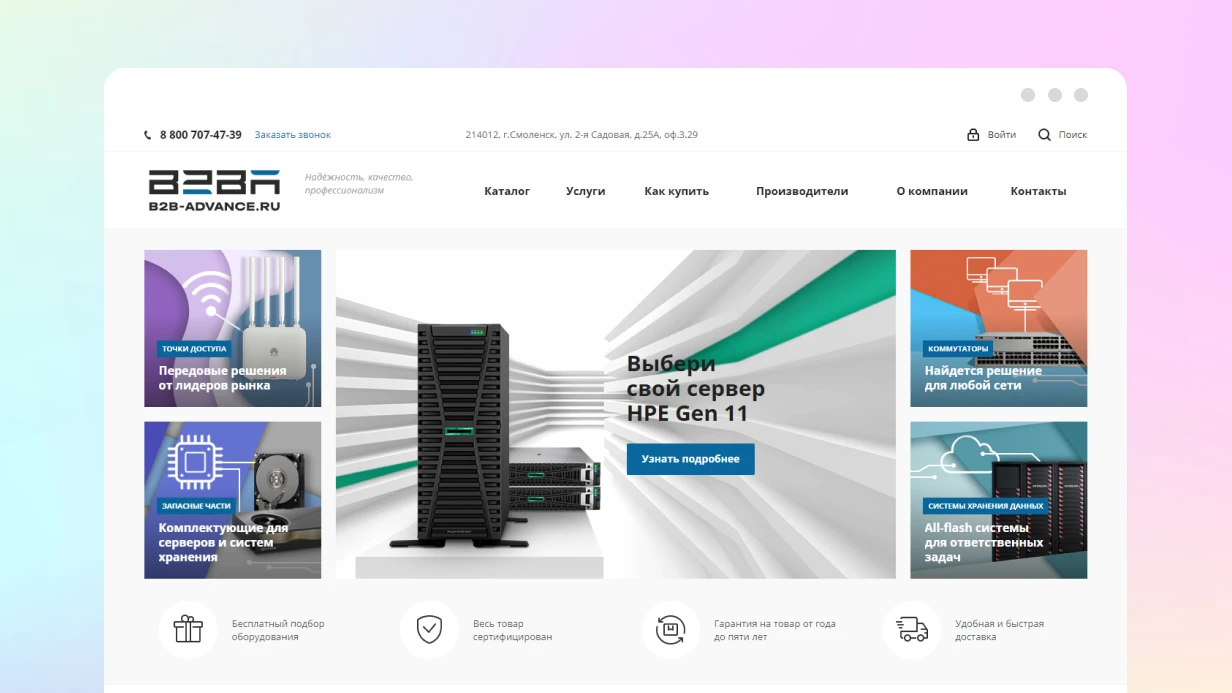
    B2B ADVANCE company website development
    1358
  • image_web-applications_feedme_466_0.webp
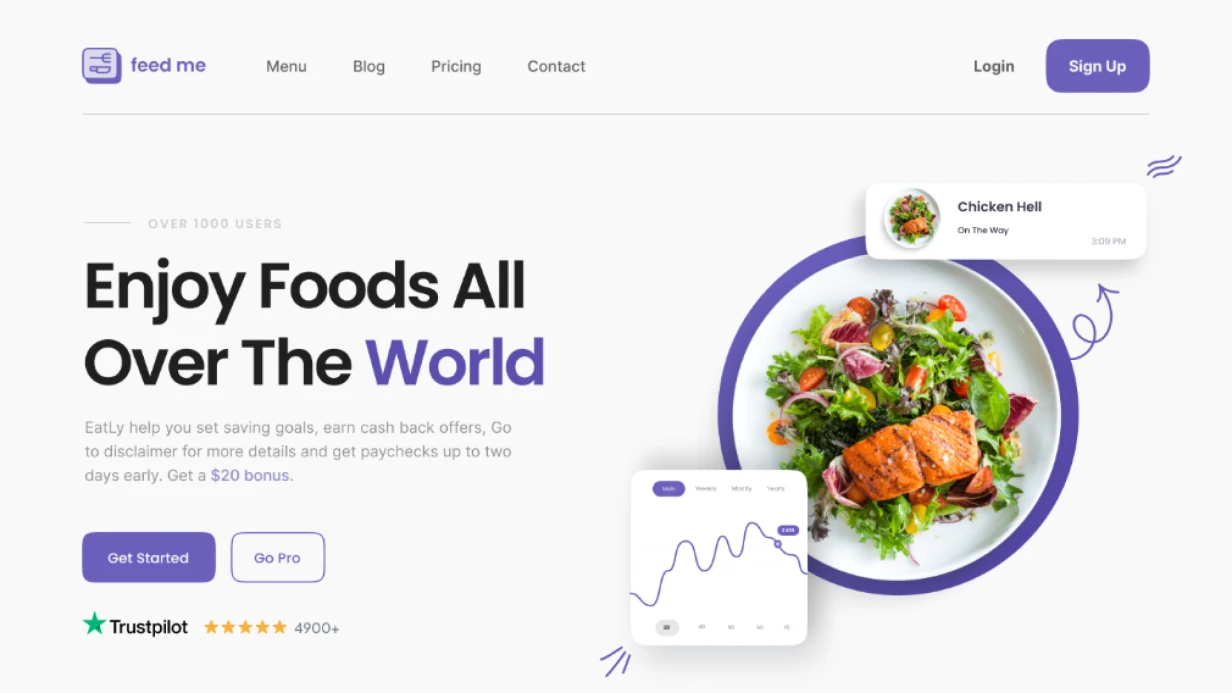
    Development of a web application for FEEDME
    1251
  • image_websites_belfingroup_462_0.webp
    Website development for BELFINGROUP
    956
  • image_ecommerce_furnoro_435_0.webp
    Development of an online store for the company FURNORO
    1188
  • image_crm_enviok_479_0.webp
    Development of a web application for Enviok
    929
  • image_bitrix-bitrix-24-1c_fixper_448_0.webp
    Website development for FIXPER company
    947

You launch a PWA, but the browser doesn't prompt installation? Check the console: likely a manifest error. Setting up the Web App Manifest seems like a small detail, but in 80% of cases it blocks the beforeinstallprompt event. We've seen projects where maskable icons were missing, display_override was incorrect, or iOS meta tags were forgotten. As a result, users don't get the icon on their home screen, and conversion drops by 30–40%. Let's break down how to make your app installable on Android, iOS, and desktop without unnecessary complexity.

Why Users Don't See the Install Button

Common reasons: missing manifest, invalid JSON, inappropriate icons (size or type), incorrect display (e.g., browser instead of standalone), no Service Worker, no HTTPS. But most often, icons don't meet requirements: Android needs maskable icons with purpose: maskable, iOS needs apple-touch-icon. Without them, the browser simply won't offer installation. We systematize the errors and provide ready solutions.

Full manifest.json

{
    "name": "TechStore — Buy Electronics Online",
    "short_name": "TechStore",
    "description": "Smartphones, laptops, accessories. Fast delivery.",
    "start_url": "/?utm_source=pwa&utm_medium=manifest",
    "scope": "/",
    "display": "standalone",
    "display_override": ["window-controls-overlay", "standalone"],
    "orientation": "any",
    "theme_color": "#1a73e8",
    "background_color": "#ffffff",
    "lang": "en",
    "dir": "ltr",
    "categories": ["shopping", "lifestyle"],
    "icons": [
        {
            "src": "/icons/icon-192.png",
            "sizes": "192x192",
            "type": "image/png",
            "purpose": "any"
        },
        {
            "src": "/icons/icon-192-maskable.png",
            "sizes": "192x192",
            "type": "image/png",
            "purpose": "maskable"
        },
        {
            "src": "/icons/icon-512.png",
            "sizes": "512x512",
            "type": "image/png",
            "purpose": "any"
        },
        {
            "src": "/icons/icon-512-maskable.png",
            "sizes": "512x512",
            "type": "image/png",
            "purpose": "maskable"
        }
    ],
    "screenshots": [
        {
            "src": "/screenshots/catalog-mobile.webp",
            "sizes": "390x844",
            "type": "image/webp",
            "form_factor": "narrow",
            "label": "Product Catalog"
        },
        {
            "src": "/screenshots/product-mobile.webp",
            "sizes": "390x844",
            "type": "image/webp",
            "form_factor": "narrow",
            "label": "Product Page"
        },
        {
            "src": "/screenshots/catalog-desktop.webp",
            "sizes": "1280x800",
            "type": "image/webp",
            "form_factor": "wide",
            "label": "Catalog — Desktop"
        }
    ],
    "shortcuts": [
        {
            "name": "Cart",
            "short_name": "Cart",
            "url": "/cart?utm_source=pwa",
            "icons": [{ "src": "/icons/cart-96.png", "sizes": "96x96", "type": "image/png" }]
        },
        {
            "name": "Search",
            "short_name": "Search",
            "url": "/search?utm_source=pwa",
            "icons": [{ "src": "/icons/search-96.png", "sizes": "96x96", "type": "image/png" }]
        }
    ],
    "protocol_handlers": [
        {
            "protocol": "web+techstore",
            "url": "/products?q=%s"
        }
    ]
}

Linking in HTML

<head>
    <link rel="manifest" href="/manifest.json">

    <!-- iOS — Safari does not read manifest for these parameters -->
    <meta name="apple-mobile-web-app-capable" content="yes">
    <meta name="apple-mobile-web-app-status-bar-style" content="black-translucent">
    <meta name="apple-mobile-web-app-title" content="TechStore">

    <!-- iOS icons -->
    <link rel="apple-touch-icon" href="/icons/apple-touch-icon-180.png">
    <link rel="apple-touch-icon" sizes="152x152" href="/icons/apple-touch-icon-152.png">
    <link rel="apple-touch-icon" sizes="120x120" href="/icons/apple-touch-icon-120.png">

    <!-- iOS splash screens (optional) -->
    <link rel="apple-touch-startup-image"
          media="(device-width: 390px) and (device-height: 844px)"
          href="/splashscreens/iphone12.png">

    <!-- Windows tile -->
    <meta name="msapplication-TileColor" content="#1a73e8">
    <meta name="msapplication-TileImage" content="/icons/icon-144.png">
    <meta name="theme-color" content="#1a73e8">
</head>

Comparison of Android and iOS Support

Manifest field Android (Chrome) iOS (Safari)
display Supported (standalone, fullscreen) Ignored
icons All sizes supported Only apple-touch-icon
shortcuts Supported Not supported
screenshots Supported (for installation) Not supported
scope Supported Ignored

Display Modes

Value Description
browser Regular browser tab
minimal-ui Minimal navigation elements
standalone No address bar, like a native app
fullscreen Full screen without browser UI

display_override is an array with priority: the browser picks the first supported value. window-controls-overlay provides a custom title bar for Desktop PWA.

Maskable Icon

A maskable icon adapts to the device's shape (circle, square, squircle). Content must be within the safe zone — a central circle with 80% radius of the size. We use the sharp library to generate such icons with correct padding. Without maskable, the icon may be cropped on Android and Windows, ruining the user's perception at install time.

How to check a maskable icon Upload the icon to maskable.app — it will show how it appears on different devices. If content extends beyond the safe zone, increase padding.

Dynamic Manifest for Multilingual Sites

// routes/web.php
Route::get('/manifest.json', [ManifestController::class, 'index']);

// ManifestController.php
public function index(Request $request): JsonResponse
{
    $locale = app()->getLocale();
    $manifest = [
        'name'             => __('pwa.name'),
        'short_name'       => __('pwa.short_name'),
        'description'      => __('pwa.description'),
        'start_url'        => "/?lang={$locale}&utm_source=pwa",
        'lang'             => $locale,
        'theme_color'      => '#1a73e8',
        'background_color' => '#ffffff',
        'display'          => 'standalone',
        'scope'            => '/',
        'icons'            => $this->getIcons(),
        'shortcuts'        => $this->getShortcuts($locale),
    ];

    return response()->json($manifest)
        ->header('Content-Type', 'application/manifest+json');
}

Verification

  • Chrome DevTools → Application → Manifest — check all fields, icons, and installability
  • Lighthouse → PWA — verify all requirements
  • PWABuilder — full audit and package generation for App Store

Use MDN documentation for spec reference.

According to the W3C specification, Web App Manifest is the standard for defining PWA appearance on devices.

Why Doesn't Manifest Work on iOS?

Safari ignores the display field and some others. The solution is to add the meta tags and apple-touch-icon as listed above. Without them, the PWA on iPhone opens in Safari, not as a standalone app. Also ensure start_url is correct and points to an HTTPS page.

How to Verify Manifest Correctness Before Deployment?

We use three tools: Chrome DevTools for quick checks, Lighthouse for a full PWA audit, and PWABuilder for final verification. PWABuilder also generates packages for Google Play and App Store if you need to publish the PWA in app stores. In our experience, around 80% of installation issues are resolved with a proper manifest.

What's Included

  • Audit of current manifest (if existing)
  • Generation of all icon sizes, including maskable (192, 512, 96, 144, 180)
  • Configuration of shortcuts and screenshots for different devices
  • Markup of meta tags for iOS and Windows
  • Verification via Lighthouse and PWABuilder
  • Delivery of a ready manifest.json and update documentation

Our Process

  1. Requirements analysis (audience, devices, multilingual support)
  2. Manifest design (field set, icon structure)
  3. Implementation (icon generation, manifest writing, HTML integration)
  4. Testing on real devices (Android, iOS, Windows)
  5. Deployment and install monitoring

Estimated Timelines

Basic setup: from 4 to 8 hours. Complex projects with multilingual support and many icons: up to 2 business days. Cost is determined individually — depends on number of localizations and CMS integration needs. Order a PWA manifest setup from us — get a ready JSON and icons in 4 hours. Contact us to discuss your project and get a preliminary estimate — we'll explain how to optimize installation and boost conversion.

Our engineers have 5+ years of experience in PWA, web performance certifications, and over 50 projects completed.

What happens when your website isn't available offline?

A news site loses 40% of returning readers when articles fail to load on the subway. A fintech dashboard becomes useless during a commute. PWA app development solves that by turning your website into an installable application that works without internet, sends push notifications, and loads instantly. One codebase replaces two native teams. Over 7 years we have delivered 30+ PWA projects for e-commerce, fintech, and enterprise portals — each with measurable business impact. Contact us for a free PWA readiness assessment — we will audit your current application and estimate the effort.

How does Service Worker manage network requests?

Service Worker — a JavaScript proxy running in a separate thread — intercepts every HTTP request and decides the response source: cache, network, or a mix. Three core strategies solve most real-world scenarios.

Caching strategy Typical assets Offline behavior
Cache First JS/CSS with content hash (e.g. main.a1b2c3.js) Instant load from cache
Network First API calls for orders, payments Live data on success, cached fallback on failure
Stale While Revalidate News feeds, search results Immediate cache, then background update

Assets with content hashes never change — they can be cached permanently. Stale While Revalidate gives instant response while keeping data fresh within seconds. Google's Workbox automates versioning and cache invalidation; without it a correct Service Worker would require 300+ lines of code. Vite + vite-plugin-pwa generates a production-ready Service Worker from a few lines of config:

import { VitePWA } from 'vite-plugin-pwa';
export default {
  plugins: [
    VitePWA({
      registerType: 'autoUpdate',
      includeAssets: ['favicon.ico'],
      manifest: { /* name, icons, start_url, display */ },
      workbox: {
        globPatterns: ['**/*.{js,css,html,ico,png,svg}'],
        runtimeCaching: [
          { urlPattern: /^https?:\/\/api\./,
            handler: 'NetworkFirst',
            options: { cacheName: 'api-cache' }
          }
        ]
      }
    })
  ];
};

How is offline mode implemented in practice?

"Works offline" means different things for a news site vs. a CRM. Three typical scenarios:

  • Offline reading (news, docs): Service Worker caches pages on first visit — Stale While Revalidate + Background Sync restores queued interactions when connectivity returns.
  • Offline editing (notes, tasks): IndexedDB stores local data, Background Sync API queues operations and pushes them automatically even if the browser tab is closed. Limitation: Background Sync is supported only in Chromium (~84% of desktop and mobile users).
  • Offline forms: user taps 'Send' without internet — data is preserved in IndexedDB and submitted when the connection is restored. Critical for medical and insurance claim forms.

One commonly underestimated problem: sync conflicts. If user A edits a record offline and user B changes it online, a resolution strategy (last-write-wins, three-way merge, or showing a conflict UI) must be designed upfront. We always address these scenarios during the architecture phase.

Common pitfalls we see in practice: lack of fallback UI (users see a white screen), wrong cache strategy for user-specific data (using Cache First for authenticated API calls), ignoring Service Worker scope (worker placed too deep), and skipping precache validation. Workbox automates cache versioning to avoid expired assets.

How do Web Push notifications work?

Web Push delivers messages through the browser's Push Service (FCM for Chrome/Edge, APNs for Safari). User grants permission → browser subscribes → you receive an endpoint and key → your backend sends a message via the web-push library (Node.js) or equivalent. VAPID keys are generated once, subscriptions stored in a database. iOS (16.4+) supports Web Push only for installed PWAs; Chrome/Firefox/Edge support it without installation. A/B testing send times and content is standard practice — irrelevant notifications cause churn rates above 30%.

Why choose PWA over native applications?

Building and maintaining native iOS and Android apps costs 2–3x more than a single PWA. One codebase, unified business logic, automatic updates — no App Store review delays. PWA lifts conversion by 36% on average (Google aggregated data). Web Push re-engages users at 4x the rate of email when messages are personalized. We have delivered PWA-solutions for high‑traffic e‑commerce platforms (12M monthly sessions) and enterprise fintech dashboards — each project included Core Web Vitals optimisation to pass Google's eligibility criteria. In our experience, PWA engagement metrics are 2–3x higher than mobile web alone, and push notification click-through rates are 7x better than email.

What does turnkey PWA development include?

Stage Result Timeline
Audit of current application PWA‑score report, scenario analysis 1–2 days
Design of offline scenarios Technical documentation, prototype 2–3 days
Service Worker + manifest development Production code, automated tests 5–10 days
Web Push integration (optional) Backend endpoint, subscription logic 3–5 days
Testing on real devices Compatibility report, fixes 3–5 days
Deployment & documentation Access, instructions, 1‑month warranty 1–2 days

Deliverables you receive

  • Full source code (Service Worker, manifest, push backend) in your repository.
  • Testing guide with Lighthouse audit results and real‑device reports.
  • Push notification dashboard or API endpoint for your marketing team.
  • Performance monitoring – instruction for checking Core Web Vitals after deployment.
  • 1 month of post‑launch support – bug fixes and minor adjustments.

What is App Shell architecture?

App Shell pre‑caches the minimal HTML, CSS and JavaScript needed to render the application chrome on first load. After the shell is cached, subsequent visits render instantly even on slow or offline connections. This technique is paired with dynamic content loading for a native‑like experience.

Process and timeline (from audit to go‑live)

  1. Audit: Lighthouse PWA score, offline scenario analysis.
  2. Prioritise valuable offline use cases (based on user behaviour data).
  3. Configure Service Worker via Workbox, implement manifest.
  4. Integrate Web Push (if required).
  5. Test on real devices – Chrome DevTools, Safari Web Inspector, Android Chrome.
  6. Deploy, hand over documentation, train the team.

Estimated timelines: basic PWA (manifest + Service Worker + static cache) – 1–2 weeks on top of existing application. Add Web Push – 1–2 weeks. Offline editing with IndexedDB and Background Sync – 3–6 weeks depending on data complexity. Cost is calculated individually after a free audit. On average, a PWA project costs 40–60% less than building two native apps – and you save recurring App Store fees. Get in touch for a free consultation – we will assess your project and propose the optimal implementation plan.

Further reading